Entries show on the wrong day
VegaLoop files an entry on the date your browser’s clock says it is when you log it, and totals each day in the timezone set under Settings, Display. When the two disagree, an entry can land on the day before or after.
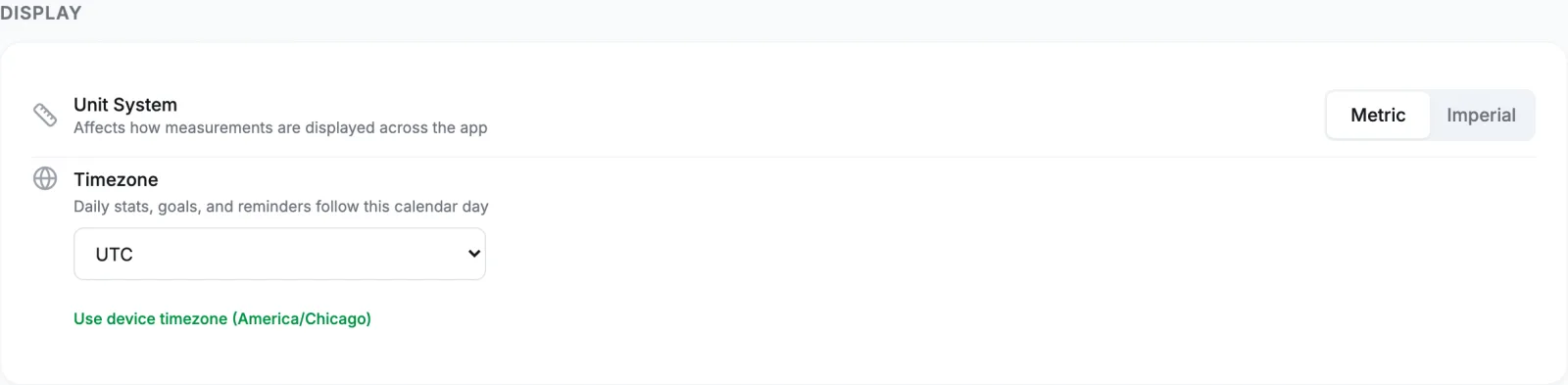
Check the timezone first
A new account is on UTC until a timezone is set. The setup wizard sets it to your device’s zone when you select Continue on its first step; if you chose I’ll do this later, the account stayed on UTC. On UTC, the day rolls over in the evening or afternoon for most of the Americas and Asia, so late meals land on tomorrow and the dashboard resets at an odd hour. Open Settings, Display, and select Use device timezone (the link appears only when the two differ). See Create your account.
After travelling or changing timezone
When you change the timezone in Settings, parts of the app can take up to an hour to apply the new zone to the current day. An entry logged in that window may land on the previous day. Wait, or move the entry.
Two devices disagree
If your laptop and your phone are set to different timezones, entries from each are filed on that device’s date. Set the timezone in Settings under Display, or choose Use device timezone so VegaLoop follows the browser you are using, and set both devices to the same zone.
Late-evening entries
A meal logged just after midnight is filed on the new day. A meal’s date cannot be changed on the web: delete it from Today’s Meals and log it again on the right day by selecting that day on the calendar of the Nutrition tab. Any day in the last 30 days works. See Log your first day.
Synced workouts
A workout from a connected device keeps the date and time the provider recorded. If the watch clock was wrong, correct it on the watch; the provider sends the time it was given, and VegaLoop cannot edit a synced workout. A session that straddles midnight is filed on the day it started.
Planned sessions
A planned session’s day is the one you scheduled. If a workout done late in the evening landed on the next day, it will not match the plan; see A planned session was not marked complete.
Still wrong
Contact support with the entry, the date you expected, and the timezone your browser was set to.