Workouts and the training calendar
Open Workouts in the top bar.
The calendar
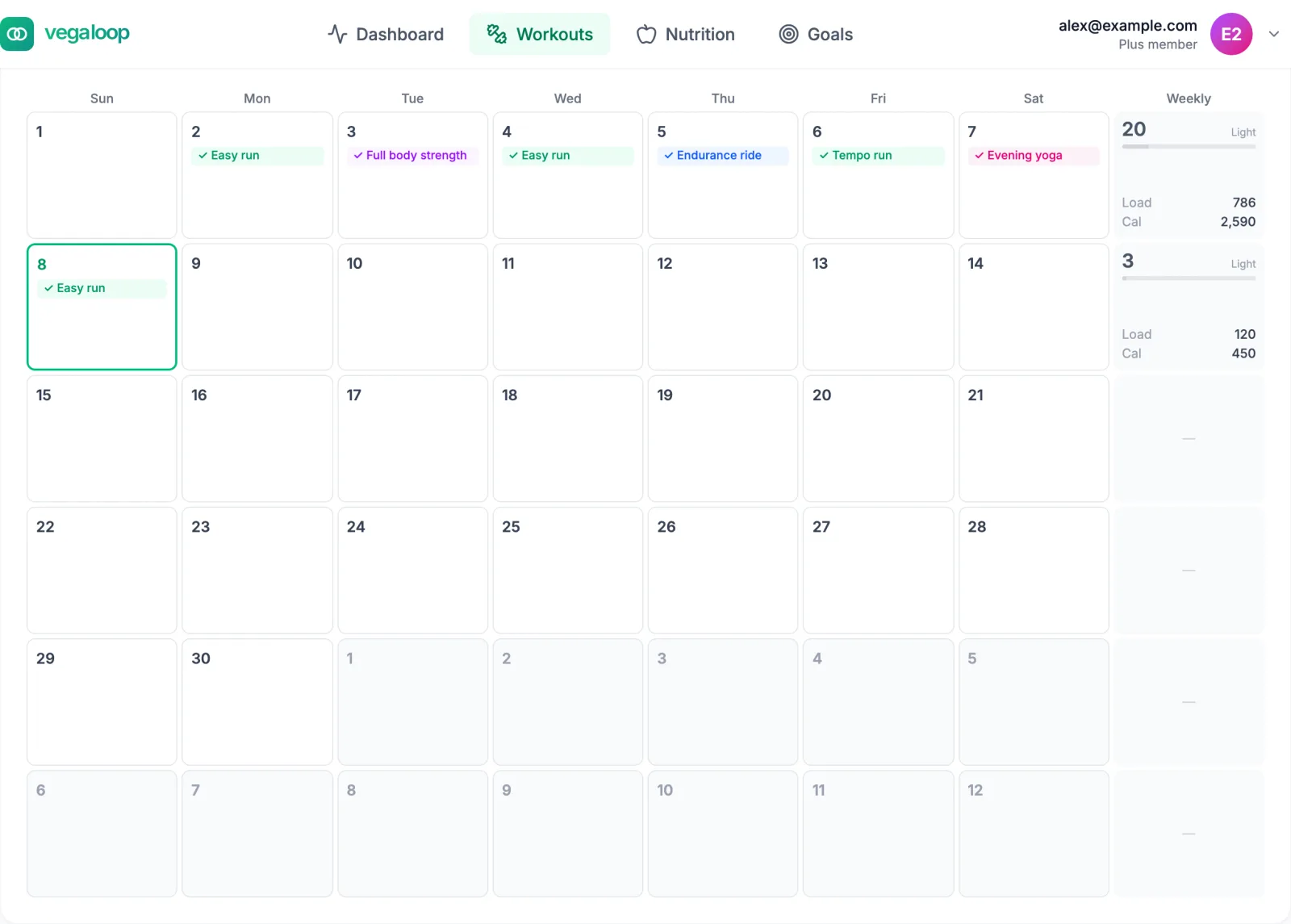
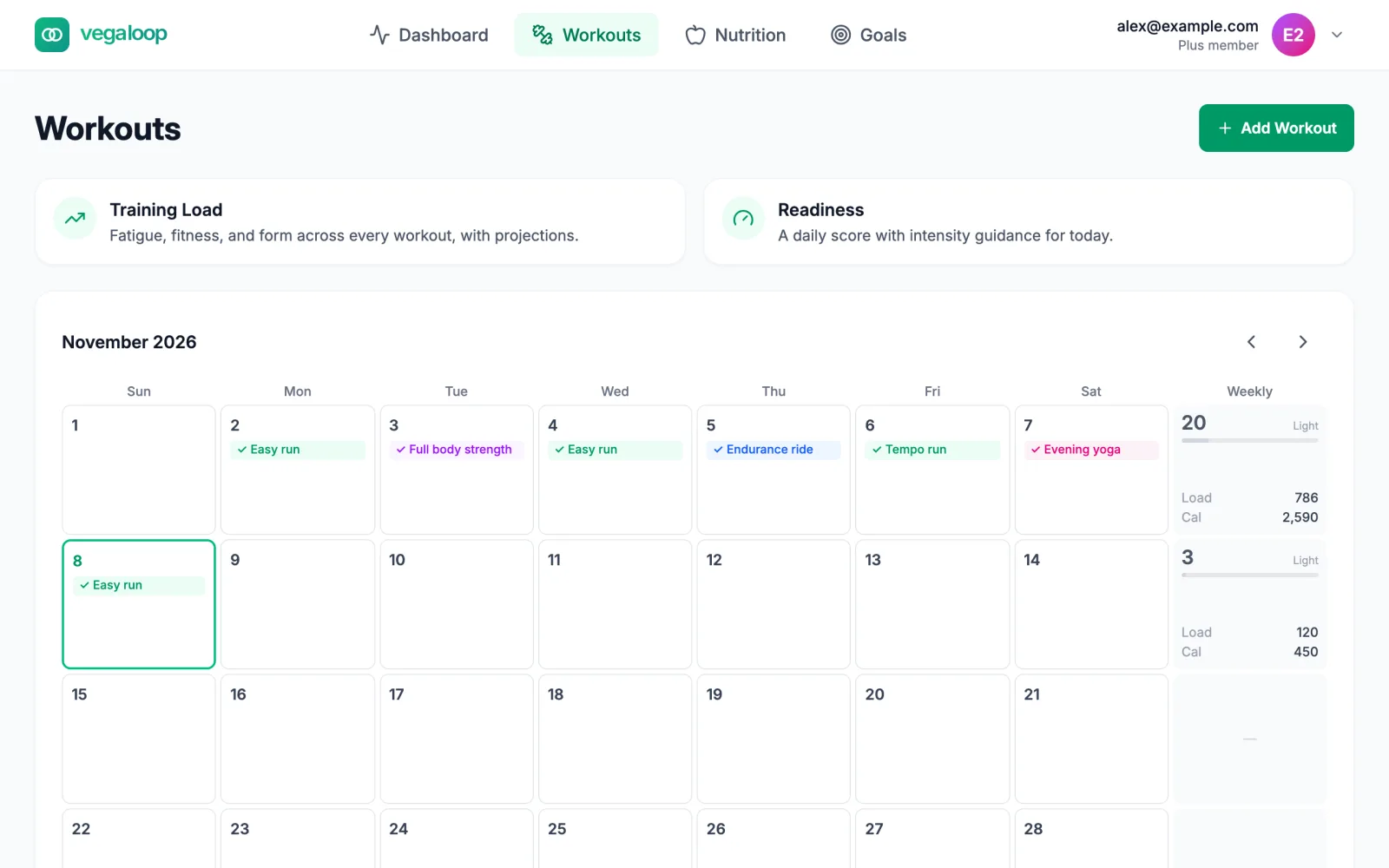
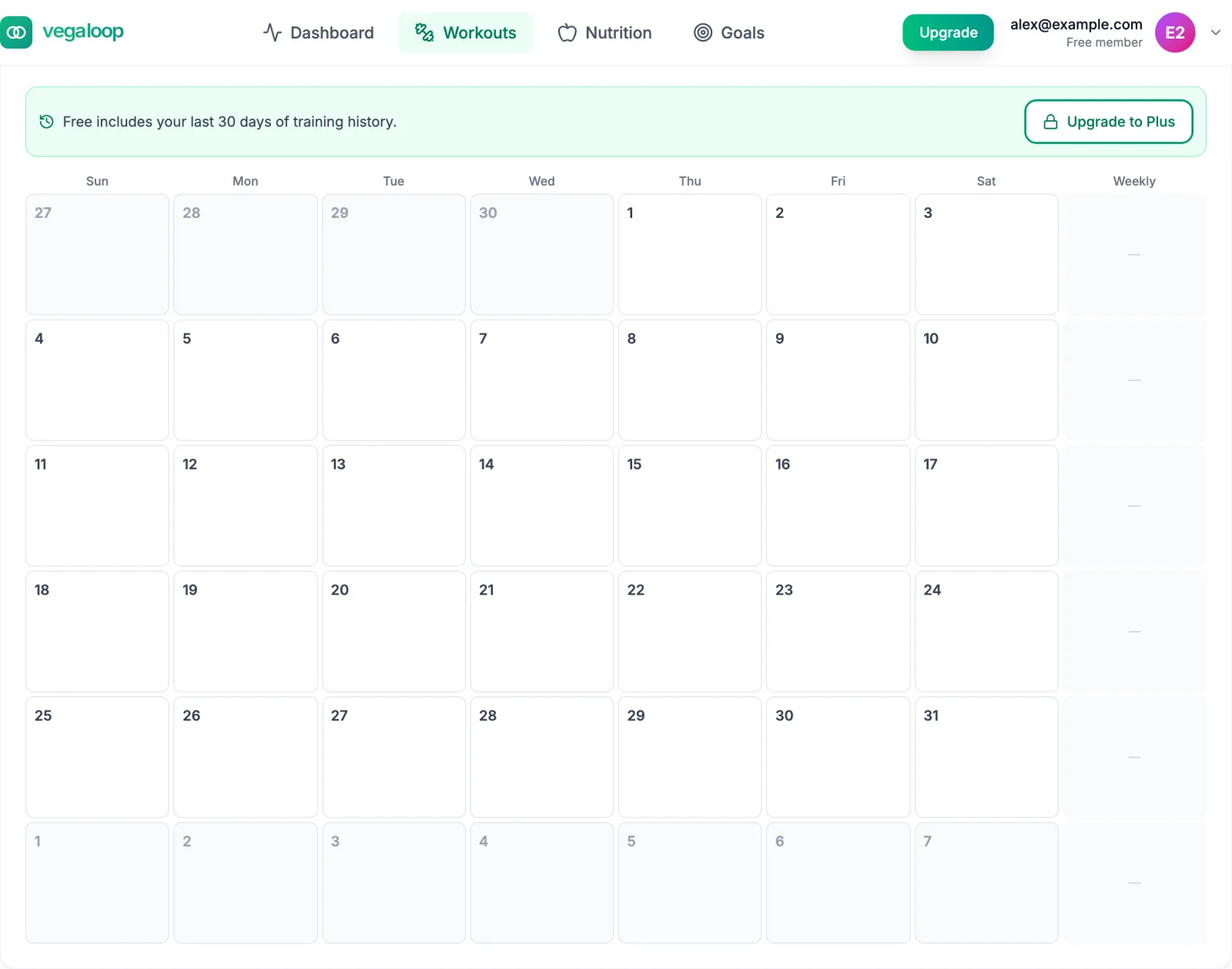
Every workout, logged or synced, appears on its day. Planned sessions from a program or a goal appear on their day too, and are ticked off automatically when a matching workout arrives; see Plan sessions that complete themselves. With a ZIP code on your profile each day carries a weather icon for the coming week, and the day’s popover shows wind, precipitation chance, and humidity. The Weekly column on the right totals the week’s load (shown as AU, the app’s unit for load points) and calories, the average perceived effort, and a score that labels the week from Rest and Light up to Overreaching.
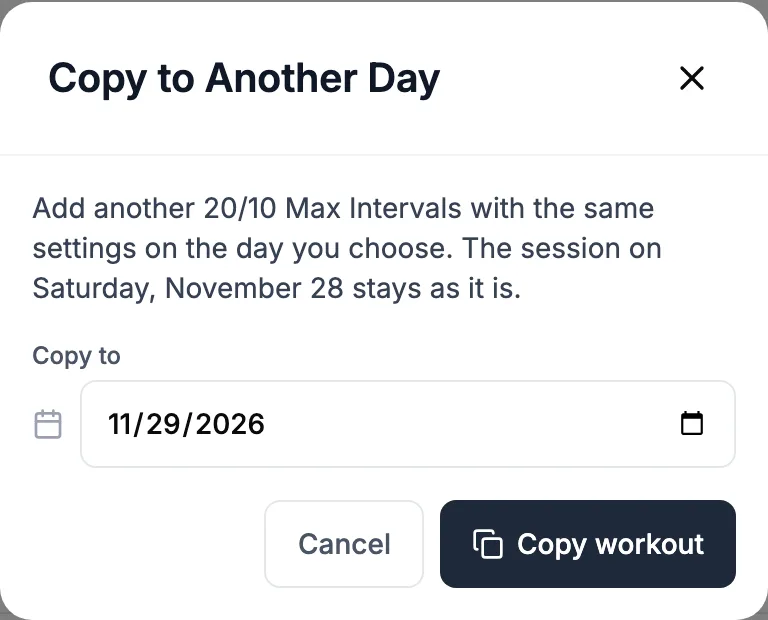
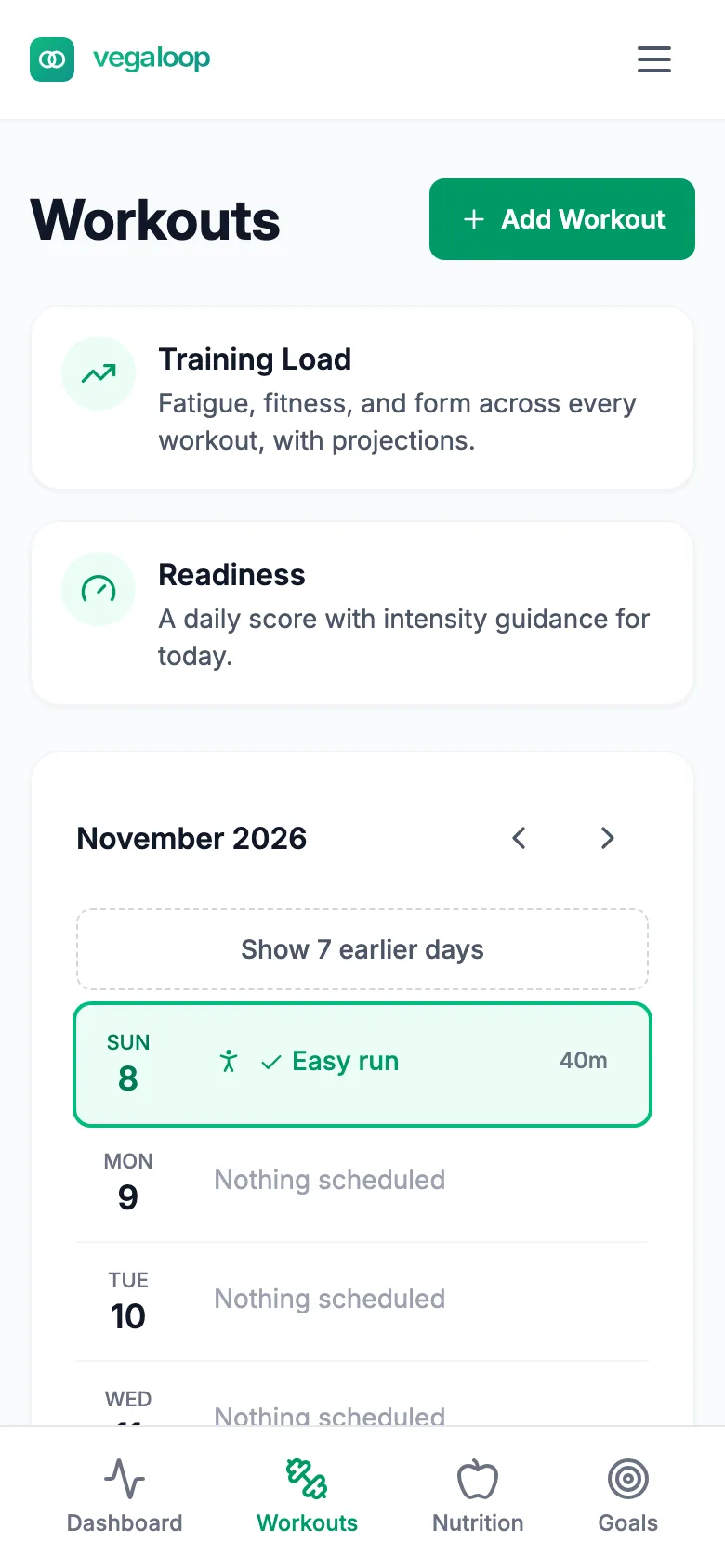
Use the arrows to move between months. On a laptop you can drag a planned session to another day (completed workouts and rest days stay put). Each planned session’s pill has two controls: the copy control opens Copy to Another Day, where you pick the day (it suggests the next day) and the copy keeps the workout, its race flag, and its adjusted values; the remove control asks Remove (title) from (day)? This cannot be undone. first. If a move, copy, or removal fails, a line above the grid says so and nothing changes. In a phone browser the month becomes a day-by-day list. The week runs Sunday to Saturday and cannot be changed.
On the Free plan the calendar shows the last 30 days. Older months read Free includes your last 30 days of training history with an Upgrade to Plus link; the data is kept and comes back on Plus.
Status chips
| Chip | Meaning |
|---|---|
| Done | A completed session. |
| Pending | A planned session still to come. |
| Not completed | A planned session whose day has passed without a match. |
| Missed | A planned session VegaLoop has noted as missed. On Plus, a suggestion may offer to move it; see Let a missed session go. |
| Rest Day | A rest day in a program. |
Selecting a day
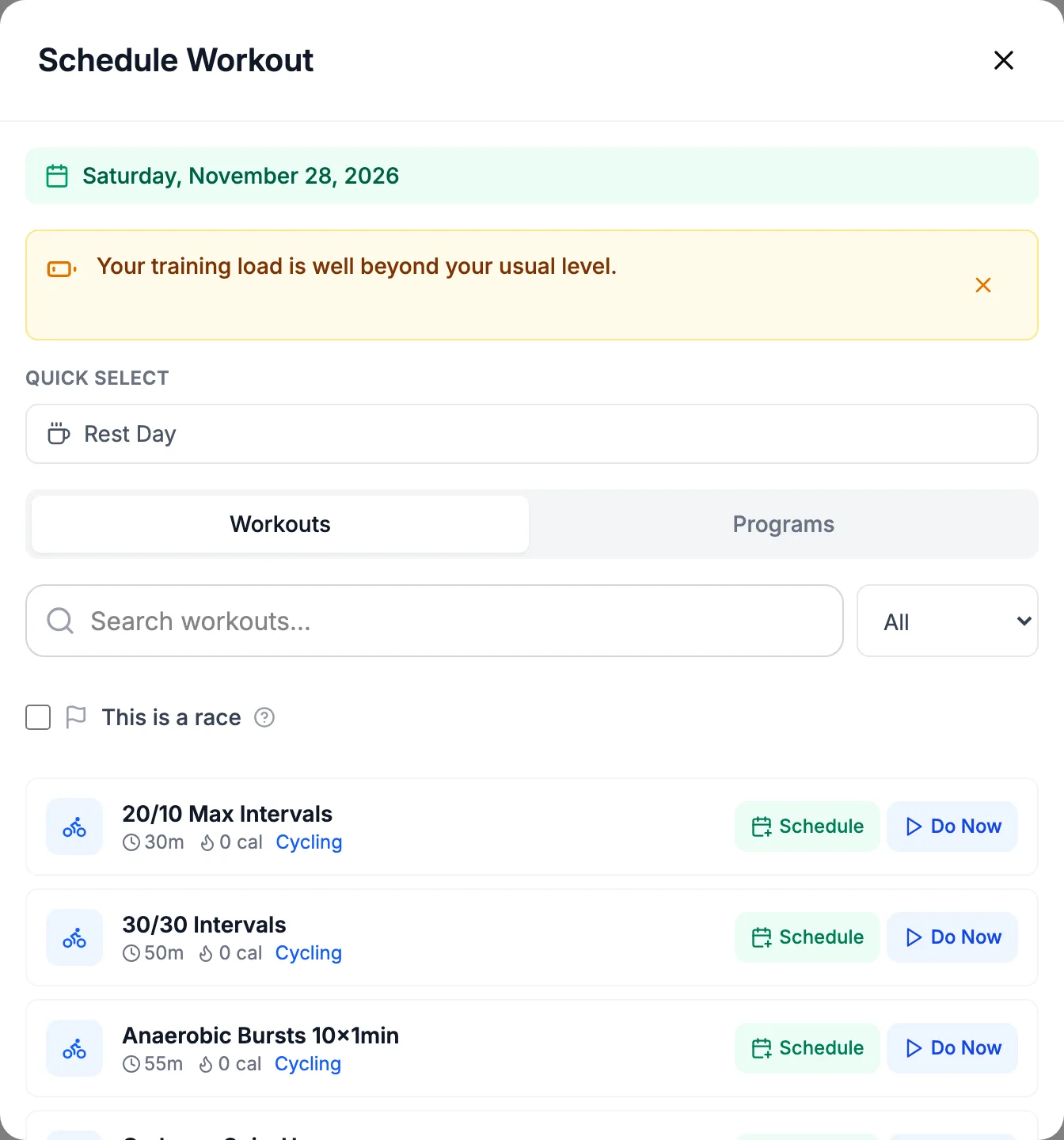
Selecting a day opens Schedule Workout for that date. Quick Select places a Rest Day. Below it, two tabs, Workouts and Programs, list the library with a search box and a sport filter. Each item has Schedule, which places it on that day, or Do Now, which opens the logging form pre-filled. A This is a race checkbox marks the session as a race: a race is never moved, eased, or dropped by a suggestion. The same dialog opens when you select a day that already has a workout, with that workout listed at the top; select it to open its detail page.
Selecting a planned session opens Edit Scheduled Workout: change the date, the race flag, or the session’s adjustable values, then Save. Mark Complete ticks it off with the plan’s estimated duration; Log with Details opens the full form to record what you actually did; Delete asks Delete this scheduled workout? This cannot be undone. and then removes it. If saving, completing, or deleting fails, the dialog says so and the workout is unchanged. A session whose library workout has since been removed reads The details of this workout are not available. It may have been removed from your library.
Log a workout by hand
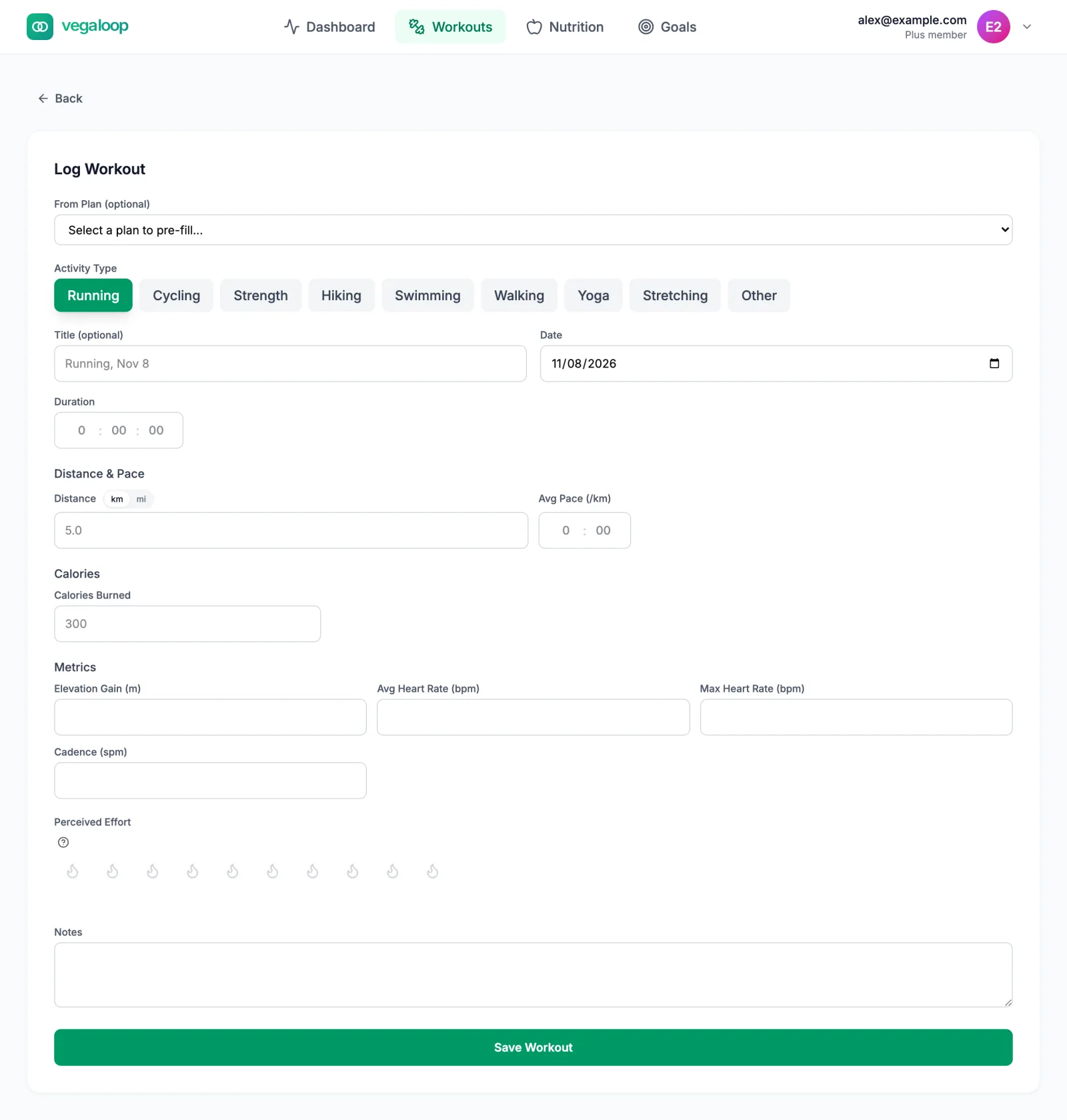
Add Workout opens this form. The Log Workout quick action on the dashboard opens a shorter version.
| Field | Notes |
|---|---|
| From Plan | Pick a planned session to pre-fill the form and mark it complete. |
| Activity Type | Running, Cycling, Strength, Hiking, Swimming, Walking, Yoga, Stretching, or Other (rowing, skiing, racket sports, and anything else). |
| Title | Optional. Defaults to the activity and date. |
| Date and Duration | Required. Minutes and seconds; duration must be above zero. |
| Distance and Pace | Distance in km or mi; pace fills in from distance and duration. |
| Calories Burned | Optional. Left empty, VegaLoop estimates it. |
| Metrics | Elevation gain, average and max heart rate, cadence, power. |
| Exercises | For strength sessions: each exercise with sets, reps (a number, a range such as 8-10, or AMRAP), and weight. See Strength workouts. |
| Perceived Effort | 1 to 10, shown as flames. Used for training load when there is no heart rate. |
| Notes | Free text. Kept even if a device version of the same workout later replaces this one. |
The perceived effort labels: 1 to 2 Easy day, barely broke a sweat; 3 to 4 Light work, could keep going; 5 to 6 Solid effort, felt the burn; 7 to 8 Tough one, dug deep; 9 to 10 Left nothing in the tank.
The workout detail page
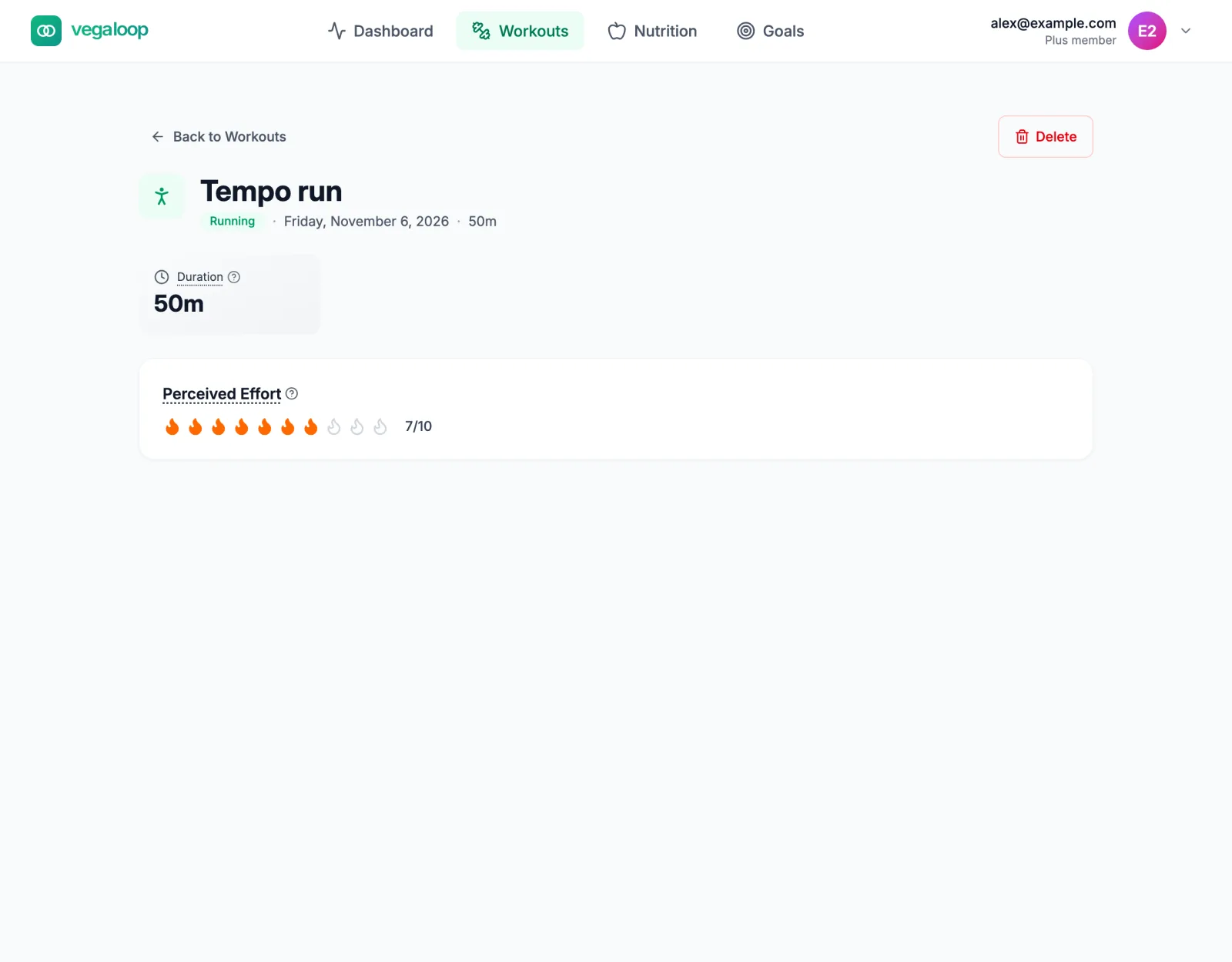
Open a workout from its day on the calendar. The page shows only the metrics the session has: for a manual entry that may be just the duration and perceived effort; a device workout adds Distance, Calories, Avg HR, Max HR, Avg Pace, Cadence, Elevation, Avg Power, and Normalized Power, plus laps, a pace chart, elevation, and heart rate zones when the device supplied them. There is no map; GPS routes are not shown. Delete asks you to confirm.
What a synced workout carries depends on the provider. Garmin, Suunto, and COROS send per-second detail and laps; Oura sends type, time, calories, and distance without heart rate; Garmin never sends heart rate zones. Synced workouts cannot be edited in VegaLoop. Correct them in the provider’s app and they update on the next sync. Manual workouts cannot be edited either: delete and log again if a value is wrong.
The workout library
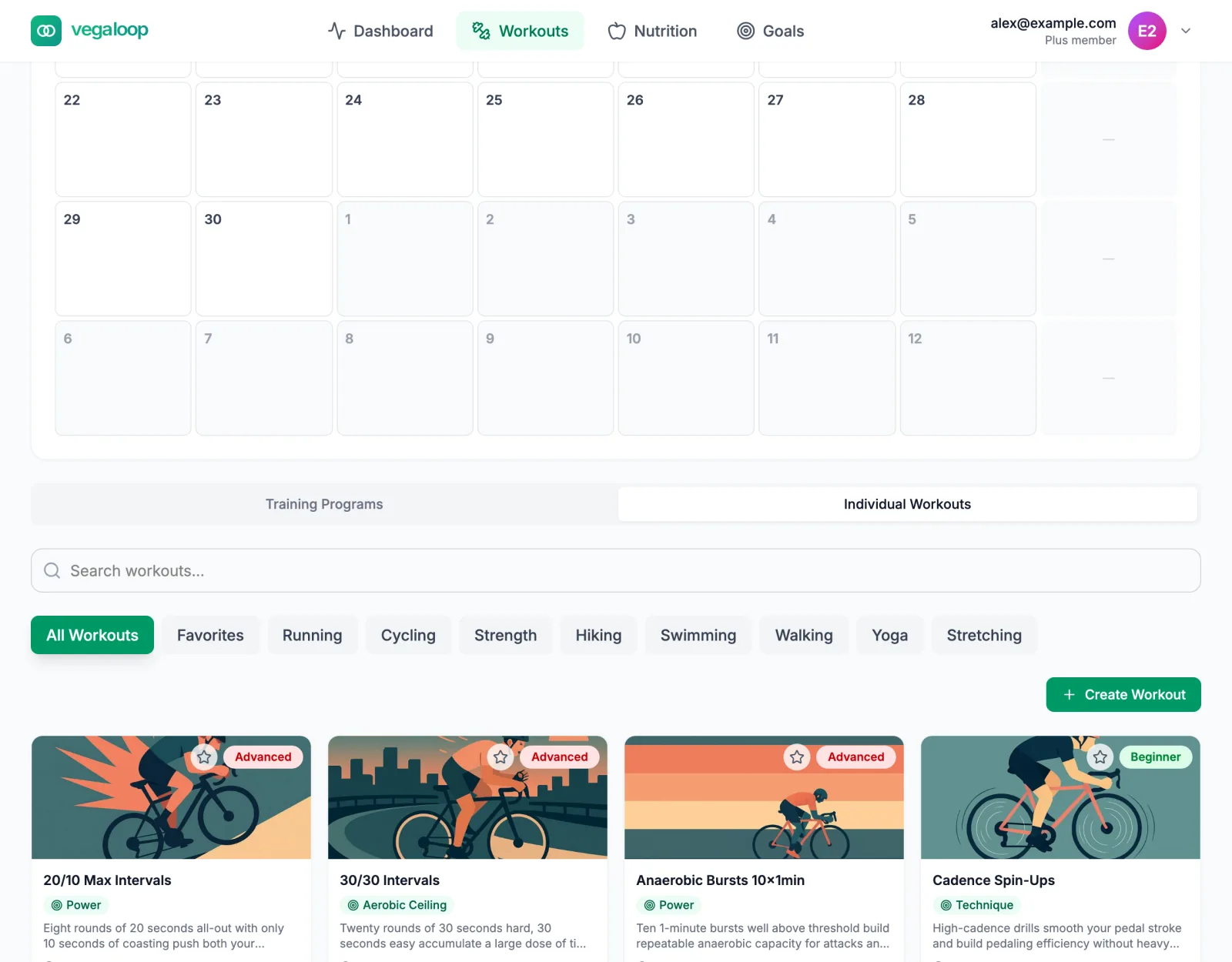
Below the calendar, the Workout Library has two tabs: Training Programs and Individual Workouts. Each individual workout has a level, a duration, an estimated calorie cost, and a purpose such as aerobic base or threshold. Filter by sport, level, or Favorites, or search by name. Schedule one onto a day, do it now, or save it to Favorites. Programs are covered in Training programs.
Create Workout opens the workout builder and Create Program the program builder; both are covered in Build your own workouts and programs. Deleting a workout you built asks Delete this workout? This cannot be undone.
Synced workouts
Workouts from a connected device arrive with the provider’s heart rate, distance, and duration and show on the calendar like any other. If you had already logged the same session by hand (same type, starting within 5 minutes), the device version replaces it and keeps your notes. See Duplicate or merged workouts.
Training load and readiness
The two cards at the top open the Training Load and Training Readiness pages, both part of Plus. See Training load and readiness.