Settings reference
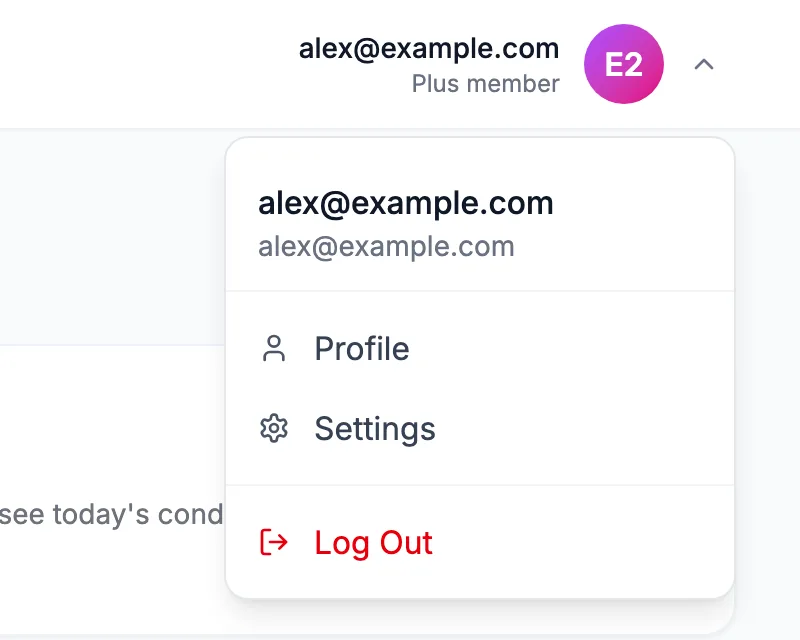
Open Settings from the account menu at the top right. The sections run top to bottom in the order below. If a change cannot be saved the page says Failed to save, your changes were reverted. Please try again.
Display
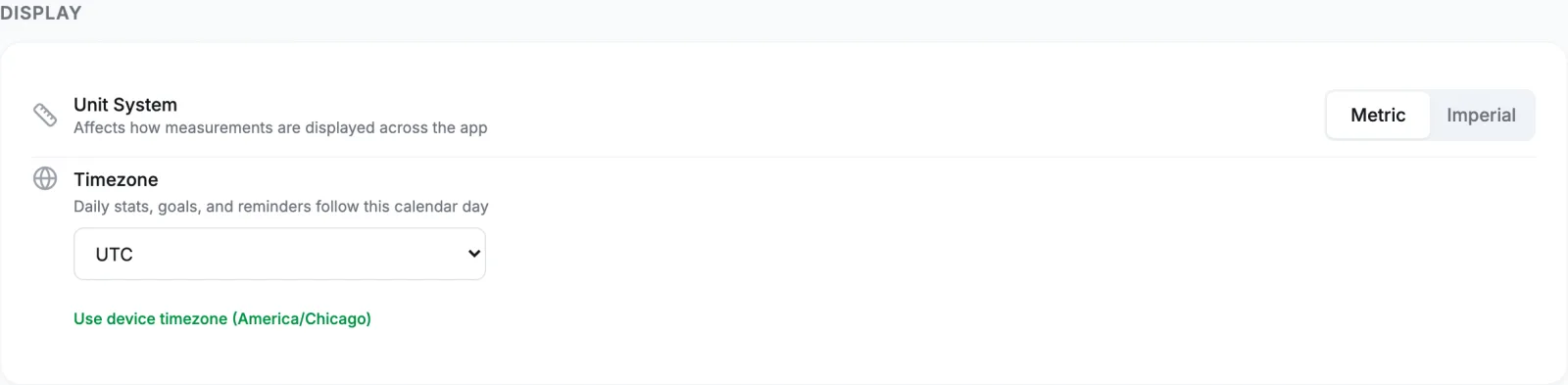
- Unit System: Metric (kg, cm, km, ml, °C) or Imperial (lb, ft and in, mi, fl oz, °F). Values are stored once and converted for display, so switching never changes what you logged. Weather, workout distances, water, and goal amounts all follow it.
- Timezone: the calendar day your daily totals, goals, and the fuel plan follow. A new account reads UTC until the setup wizard or this setting changes it. Use device timezone appears only when the setting differs from what your browser reports, and sets it to match. A change can take up to an hour to reach every part of the app. See Entries show on the wrong day.
Notifications

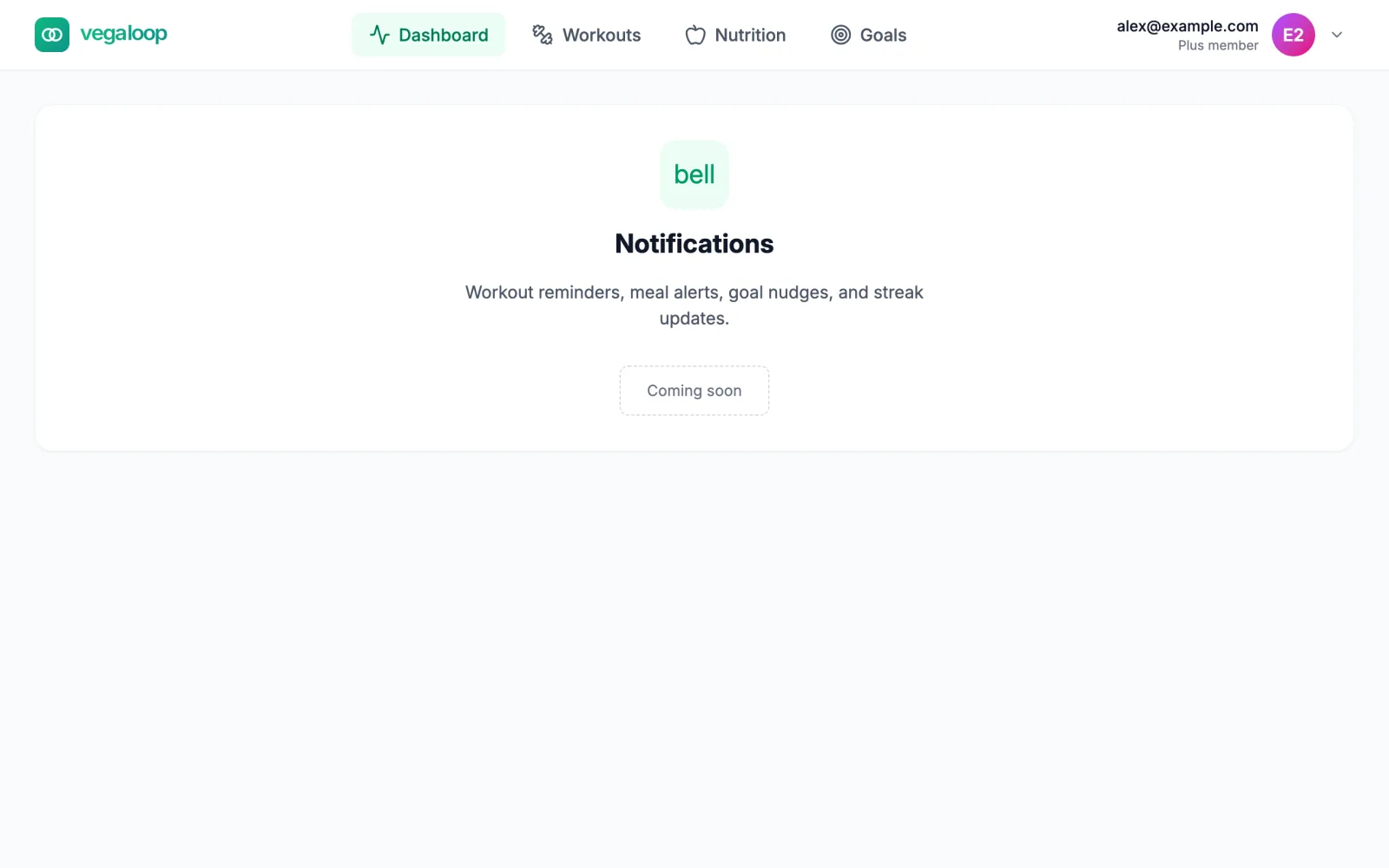
Two toggles, Email Notifications and Push Notifications, both on by default. They record your preference for when reminders are added. VegaLoop currently sends no reminders or alerts; the only emails are the verification code and the password reset code. The notifications page itself is marked Coming soon.
Nutrition Targets
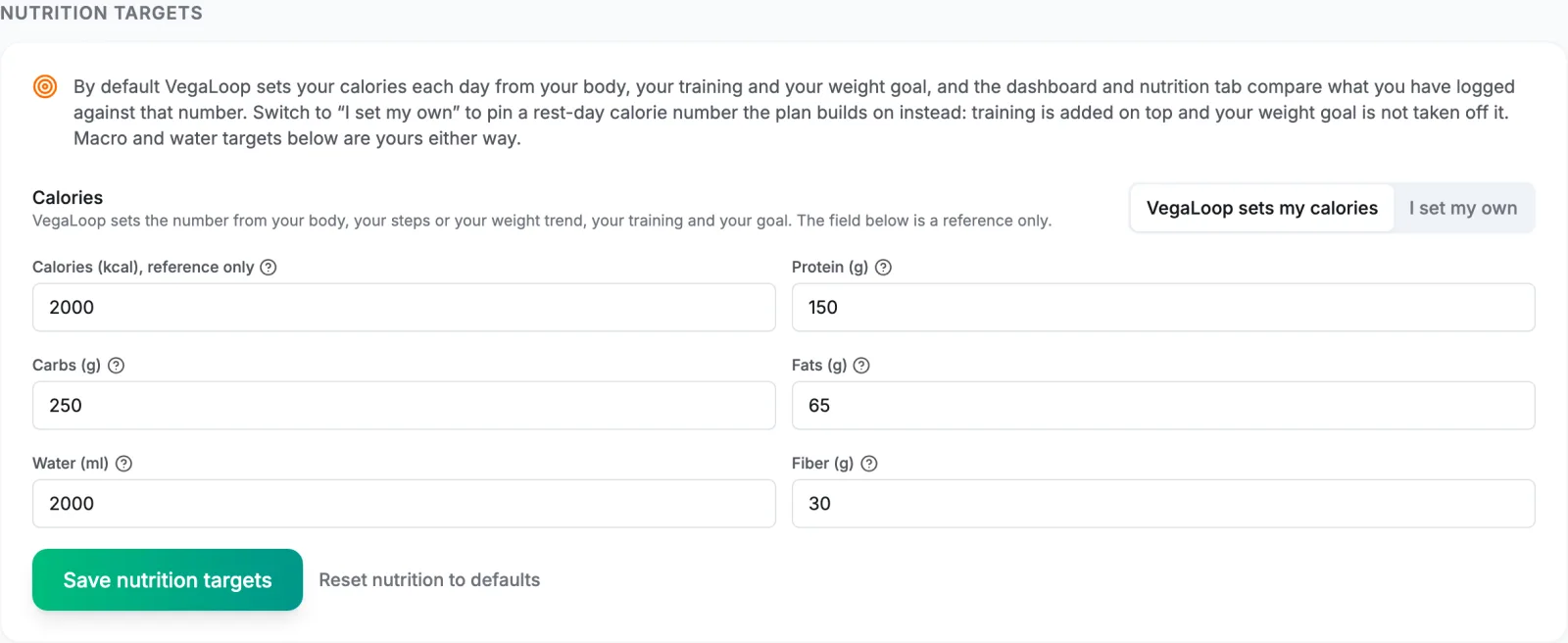
By default VegaLoop sets my calories each day from your body, your training, and your weight goal. I set my own pins a rest-day calorie number instead; training is still added on top, and a weight goal is not subtracted. The protein, carbs, fats, water, and fiber targets are set by you in both modes. Reset nutrition to defaults fills the form with the fixed defaults below; nothing changes until you select Save nutrition targets. See Fuel targets explained.
If you saved a calorie number before VegaLoop could calculate one for you, the section asks once which you want to keep: You saved a calorie target of N kcal before VegaLoop could set your calories for you. Which do you want?
| Field | Default | Maximum |
|---|---|---|
| Calories | 2,000 kcal (reference only while VegaLoop sets them) | 10,000 kcal |
| Protein | 150 g | 1,000 g |
| Carbs | 250 g | 1,000 g |
| Fats | 65 g | 1,000 g |
| Water | 2,000 ml | 8,000 ml |
| Fiber | 30 g | 150 g |
Activity Targets

A daily Steps target (default 10,000, up to 100,000) and a daily Calories Burned target (default 500 kcal, up to 10,000). The dashboard compares your synced activity against them. Reset activity to defaults restores both.
Connected Devices

A summary of your connections with their health (Healthy, Token expiring, Error, or Disconnected) and last sync, and a Connect a Device shortcut to the Integrations page. See Connect your devices.
Billing

Your current plan, its status, and the renewal or access-until date. Manage billing opens the Stripe portal for invoices, the card, and cancellation; Free accounts see See Plus plans. See Choose your plan.
Security
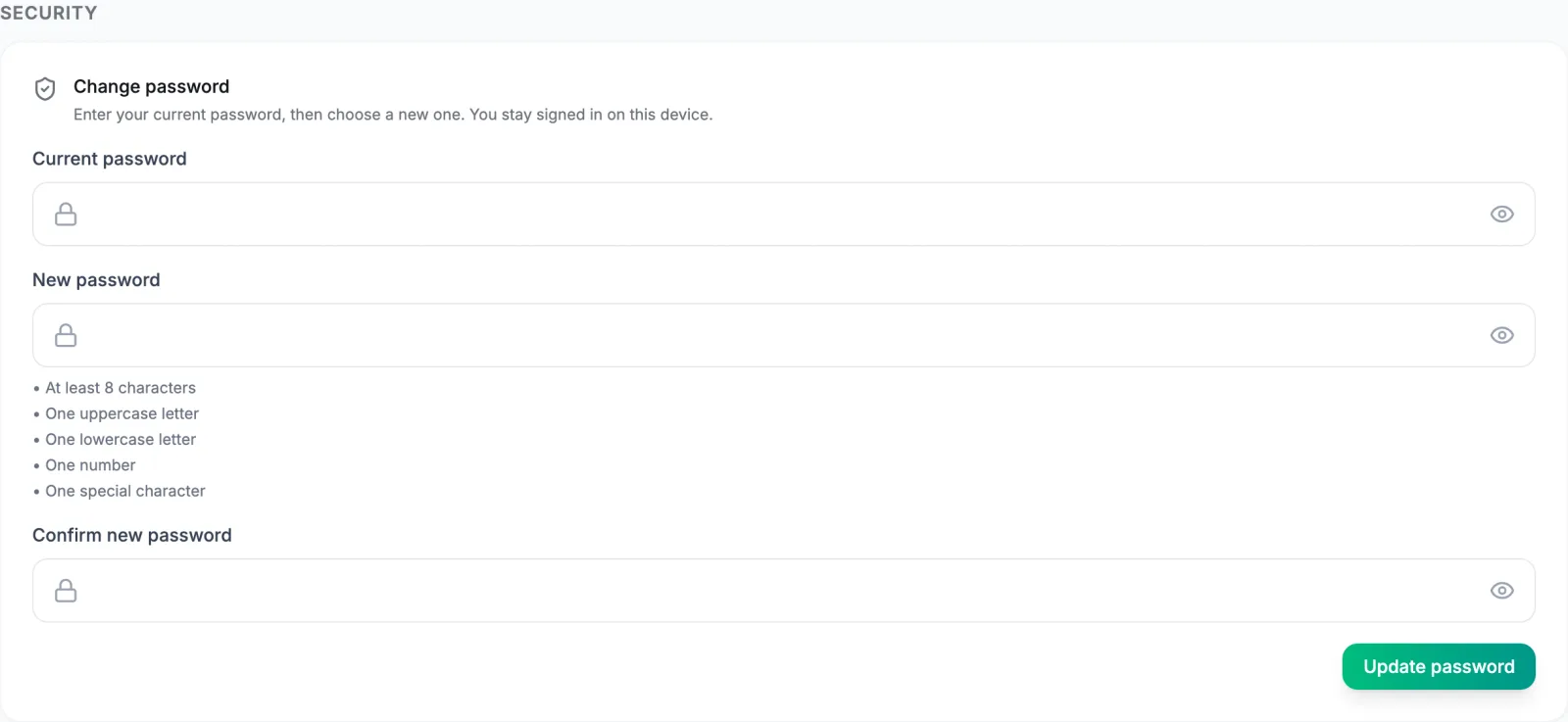
Change your password here. You stay signed in on this browser, and other sessions keep running until they expire. Accounts that signed in with Google or Apple see an explanation instead of the form. See Your account and data.
Account

- Export my data downloads one JSON file of everything on your account, on every plan.
- Delete my account permanently removes your profile, biometrics, goals, workouts, meals, dashboard data, and connected device data. It cannot be undone and there is no grace period. See Your account and data before you do.