Recipes and meal plans
Both live under Nutrition next to the tracker. Importing a recipe from a web page and sharing one with a link have their own guide: Import and share recipes.
Recipes
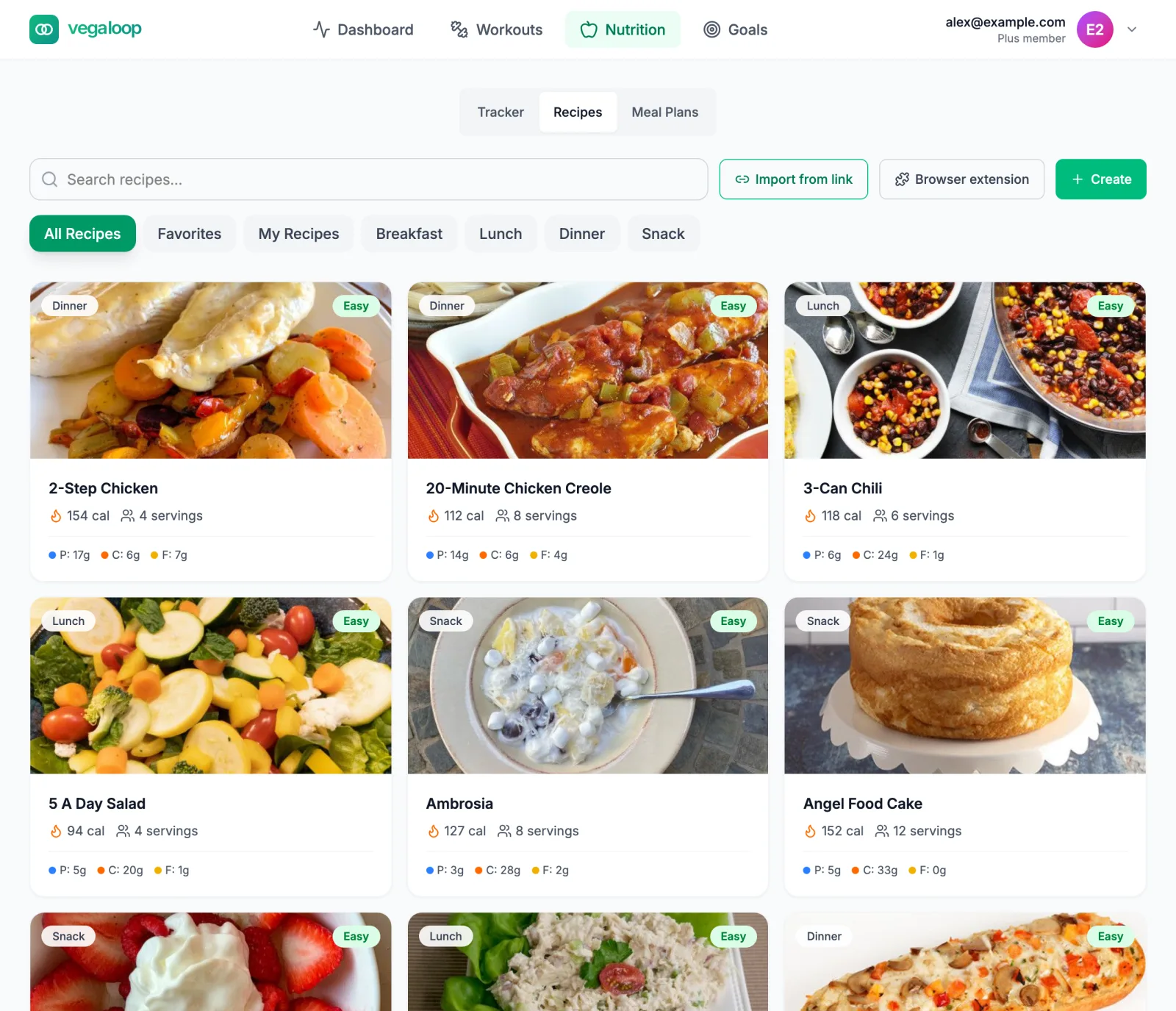
Every card shows calories per serving, the number of servings, protein, carbohydrate, and fat, and a difficulty tag. Filter by meal, by Favorites, or by My Recipes for ones you created, copied, or imported. Search looks through VegaLoop’s own library and your recipes first, then the fatsecret recipe catalog. Cards load 30 at a time as you scroll. With nothing matching, the tab reads No recipes found. Try adjusting your search or filters. If a search returns nothing see Food search finds nothing.
A recipe
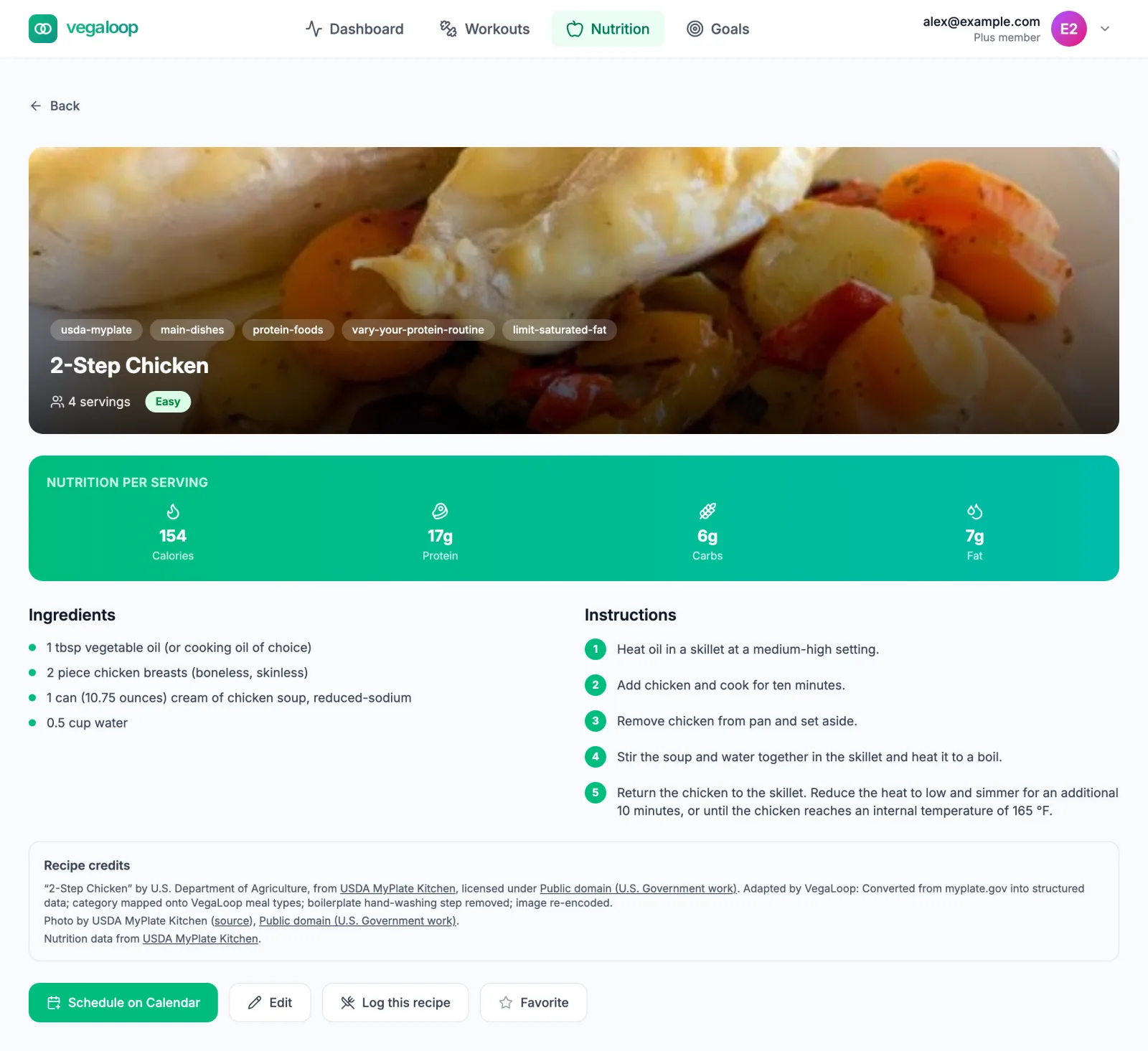
Open a card to see the photo, servings, Nutrition per serving, ingredients, and steps. The buttons:
Log this recipe asks for the day, the meal slot, and the number of servings, then adds it to the tracker as a single entry.
Schedule on Calendar puts the recipe on a day and meal slot, where it appears under Planned Meals with a Log button.
Favorite adds it to the Favorites filter (up to 100); the button reads Favorited afterwards.
Edit on your own recipes opens the recipe form. On a library recipe it creates an editable copy under My Recipes, so the original stays as it was.
Share on your own recipes creates a public link; see Import and share recipes.
Delete recipe appears on recipes you created, copied, or imported. It asks Delete “title”? This cannot be undone. and returns you to the Recipes tab. Library recipes cannot be deleted. A deleted recipe that a meal plan had scheduled leaves that planned meal in the Recipe details unavailable state.
Recipe data is credited at the bottom of the tab to USDA MyPlate Kitchen, USDA FoodData Central, and FatSecret, and nutrition is calculated by VegaLoop from USDA FoodData Central.
Your own recipes
Create opens a form: a title, the number of servings (at least 1), up to 50 ingredient lines typed as you would write them (VegaLoop matches each line to a USDA food and flags any it could not match), up to 100 steps, prep and cook time, difficulty, a category, up to 10 tags, an optional headnote, and an optional photo (JPEG, PNG, or WebP, up to 10 MB). Choose Calculate from ingredients for the nutrition per serving, or Enter nutrition manually from a label. Import from link and Browser extension bring in a recipe from another site; both are rolling out gradually and have their own guide.
Meal plans
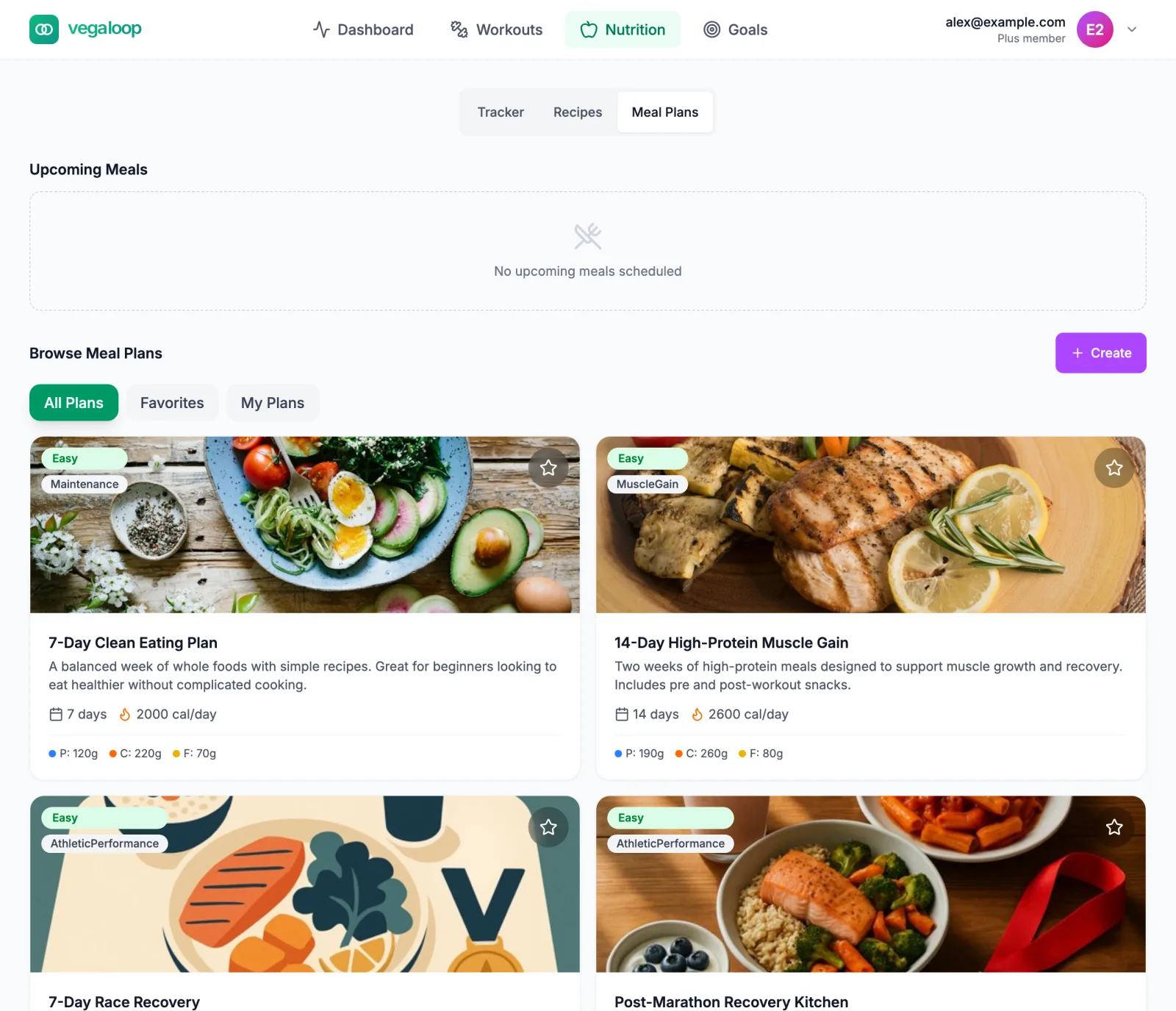
A meal plan is a set of recipes assigned to breakfast, lunch, dinner, and snack for each day. Each card shows the length, the daily calories, and a goal label: Weight Loss, Muscle Gain, Maintenance, or Athletic Performance.
The ready-made plans:
| Plan | Length | Notes |
|---|---|---|
| 7-Day Clean Eating | 7 days | Maintenance |
| 7-Day Weight Loss | 7 days | |
| 14-Day High-Protein Muscle Gain | 14 days | Part of Plus |
| 7-Day Race Recovery | 7 days | For the week after a race |
| Post-Marathon Recovery Kitchen | 6 days | |
| Post-Half-Marathon Recovery Kitchen | 4 days | |
| Post-10-Mile Recovery Kitchen | 3 days |
Plans run at most 14 days. On Free, a Plus plan opens but its schedule button is replaced by This plan is part of Plus. Upgrade to schedule every meal onto your calendar.

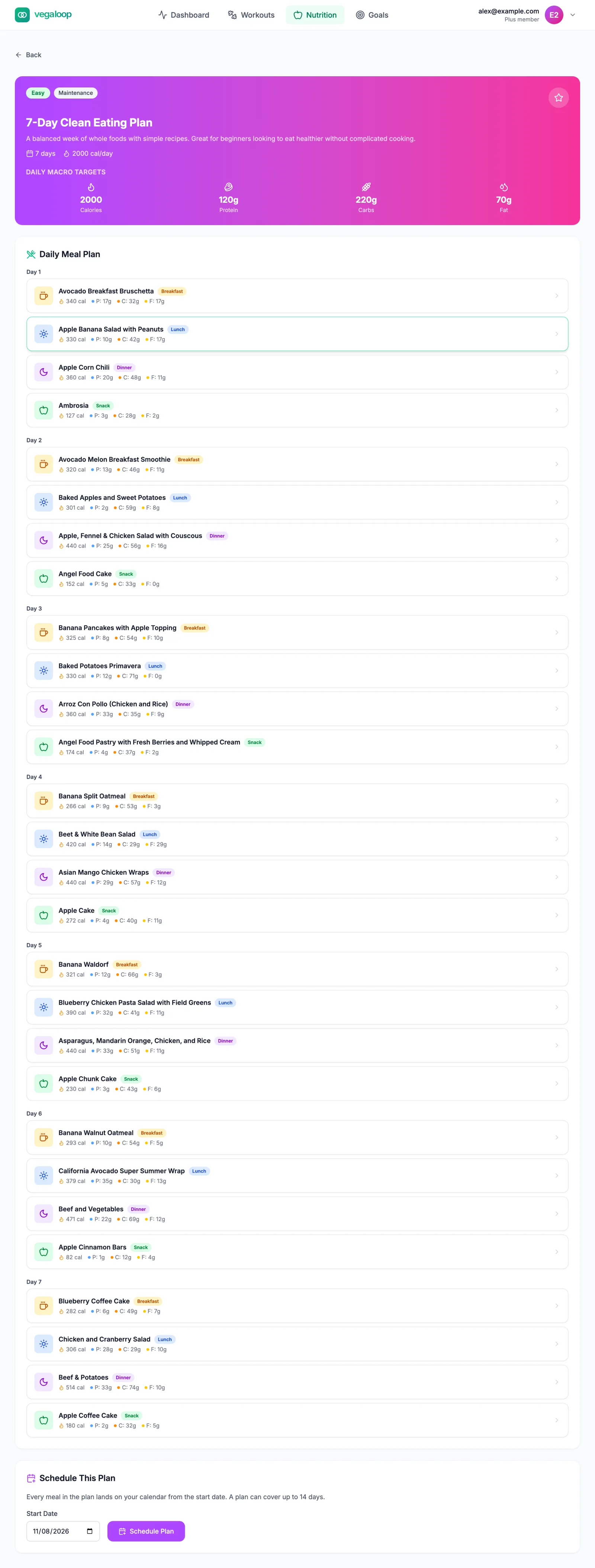
Open a plan
Daily Macro Targets shows what a day of the plan adds up to, and Daily Meal Plan lists every day’s meals with calories and macros. The star saves the plan to Favorites.
Pick a start date and schedule it
Under Schedule This Plan, choose a start date and select Schedule Plan. Every meal is copied onto your nutrition calendar from that date.
Log the meals you eat
Each scheduled meal appears under Planned Meals on its day in the tracker with a Log button. Logging it records the full nutrition in one step. Reorder or remove a planned meal from its day; the rest of the plan is unaffected. A plan does not log anything by itself, so days you skip stay empty.
Your own plans
Create under My Plans builds a plan day by day, four slots a day, from recipes you search for in VegaLoop’s catalog and FatSecret’s. It needs a name, and an optional cover photo link must start with https://. A plan holds up to 14 days, the most that can be scheduled at once; at 14 the Add day control stops and the form says so. Your own plans have a Delete meal plan action with a confirmation; library plans do not. After scheduling, the page reads Scheduled N meals and returns you to the tracker.