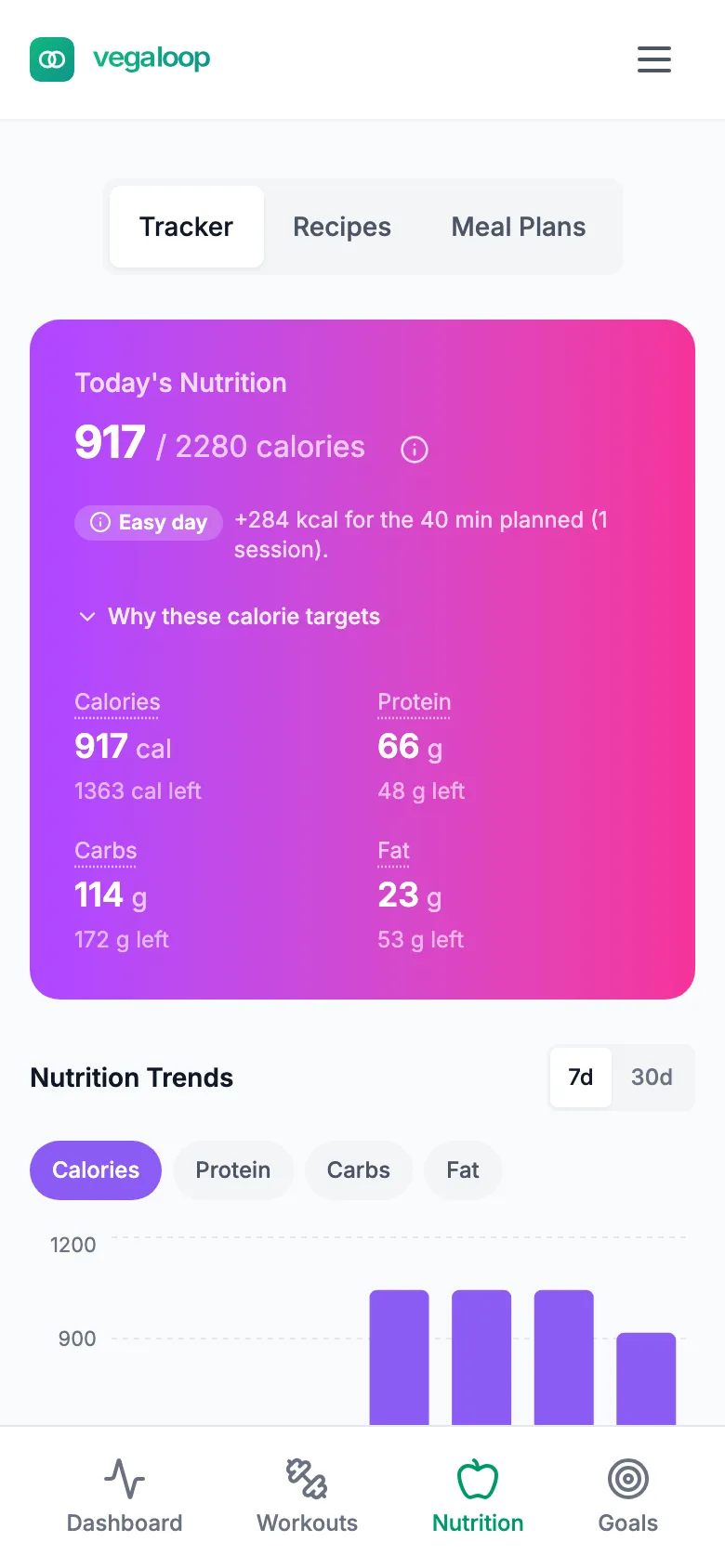
The nutrition tracker
Open Nutrition in the top bar. The page has three tabs: Tracker, Recipes, and Meal Plans. This guide covers the tracker; the other two are in Recipes and meal plans.
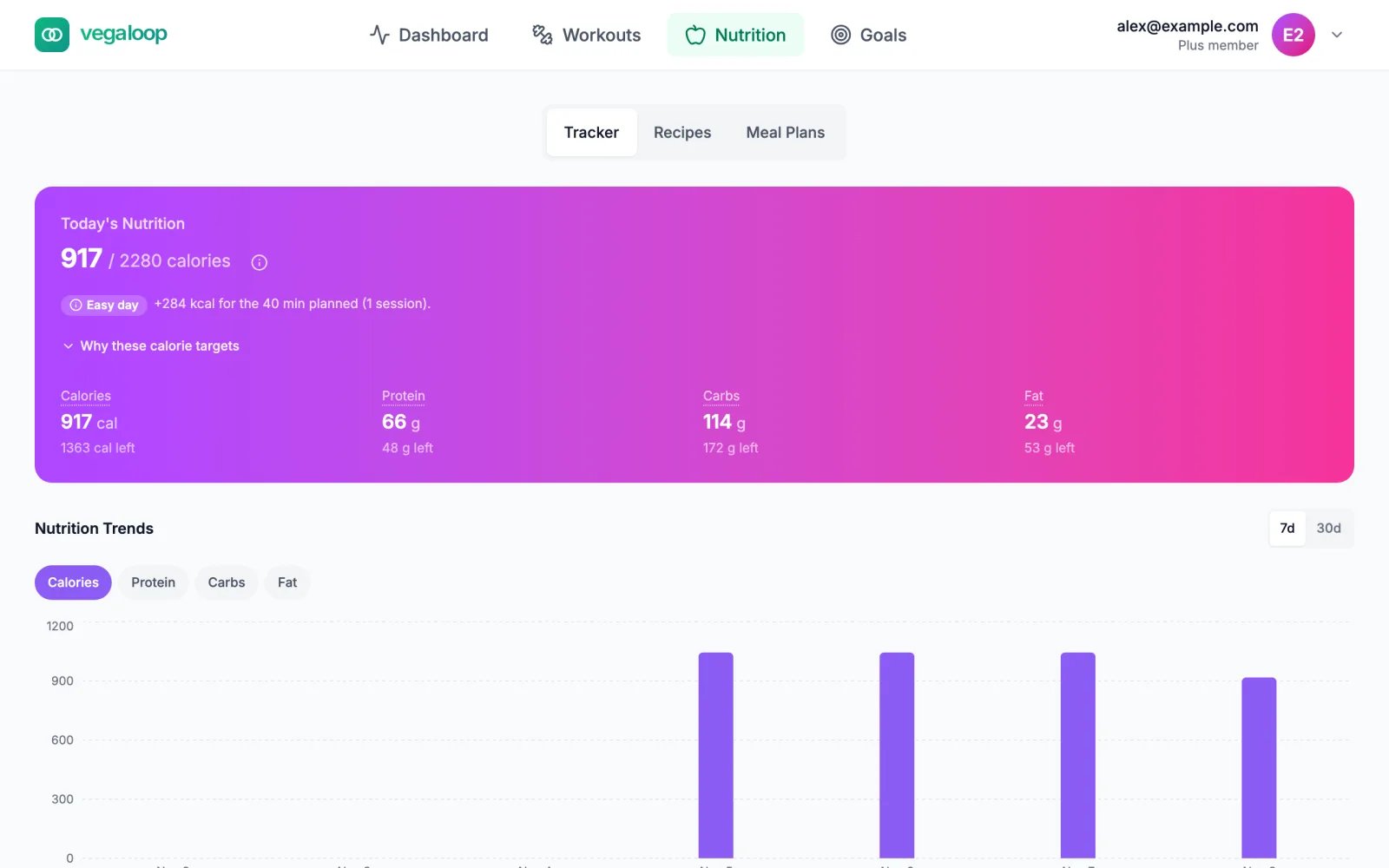
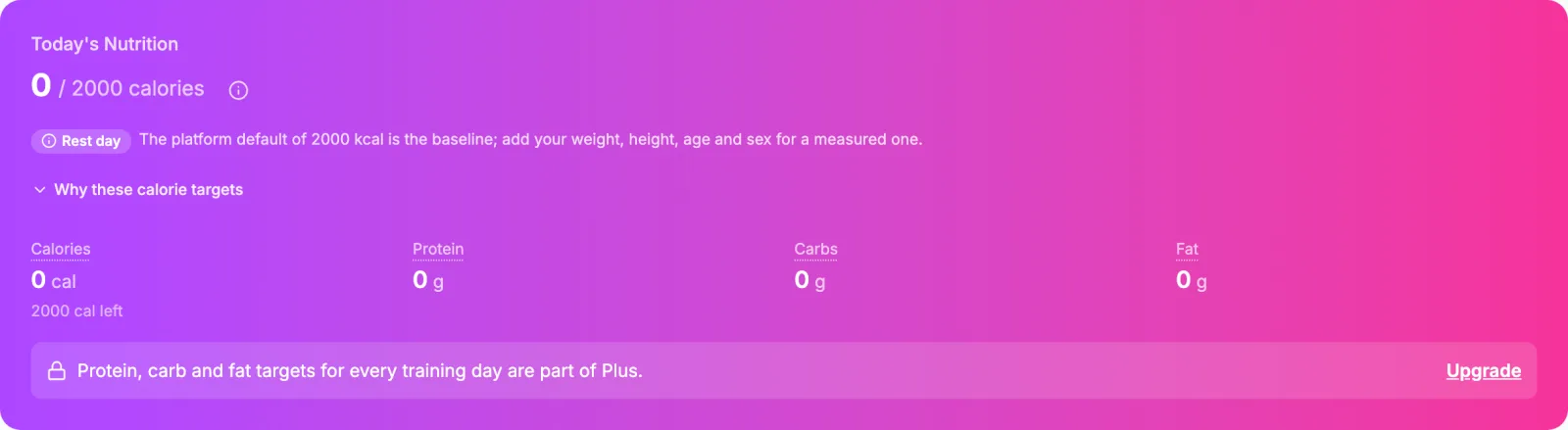
Today’s Nutrition
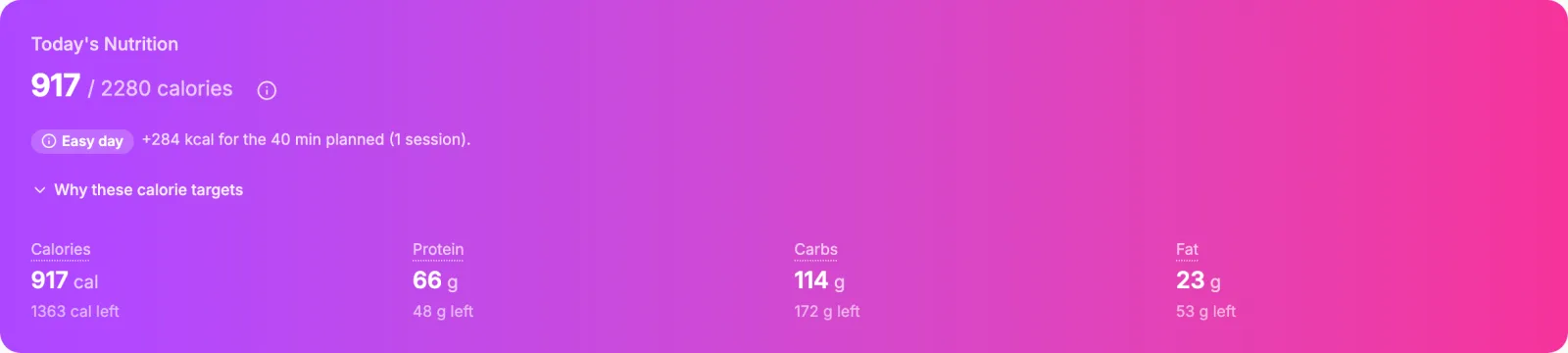
The card shows calories eaten against today’s target, with protein, carbohydrate, and fat underneath and how much of each is left. The chip next to the calorie count says what kind of day it is (Rest day, or the planned session) and the carbohydrate rule applied. Why these calorie targets expands the inputs behind the number: which rule set the baseline, what your training added, and whether a weight goal took anything off.
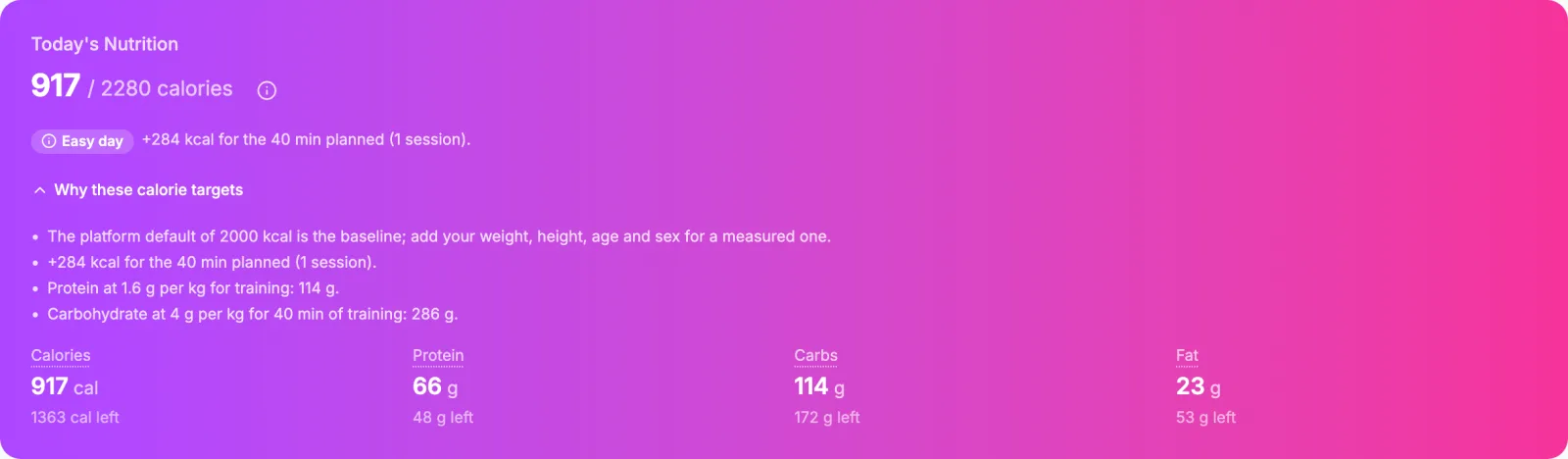
The calorie target is free on every plan. The protein, carbohydrate, and fat targets are part of Plus; on Free the card shows the grams you have eaten and one locked line, Protein, carb and fat targets for every training day are part of Plus, with an Upgrade link. See Fuel targets explained.
Nutrition Trends
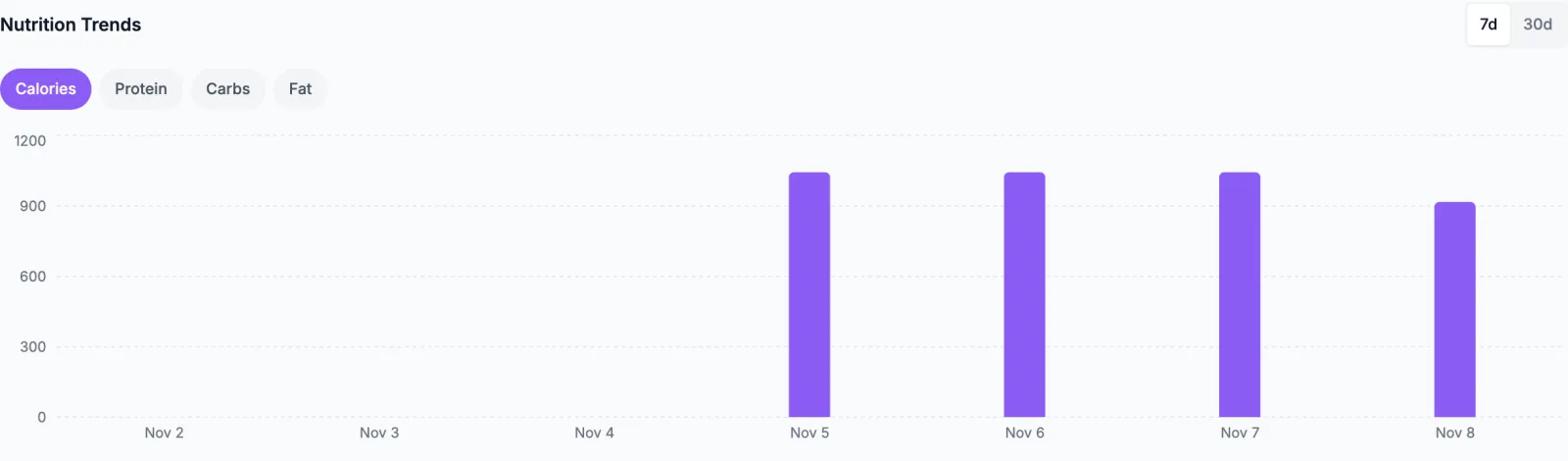
Switch between 7 and 30 days and between calories, protein, carbs, and fat. A day with nothing logged plots as zero, so a dip to zero usually means a day with no meals logged.
Month calendar
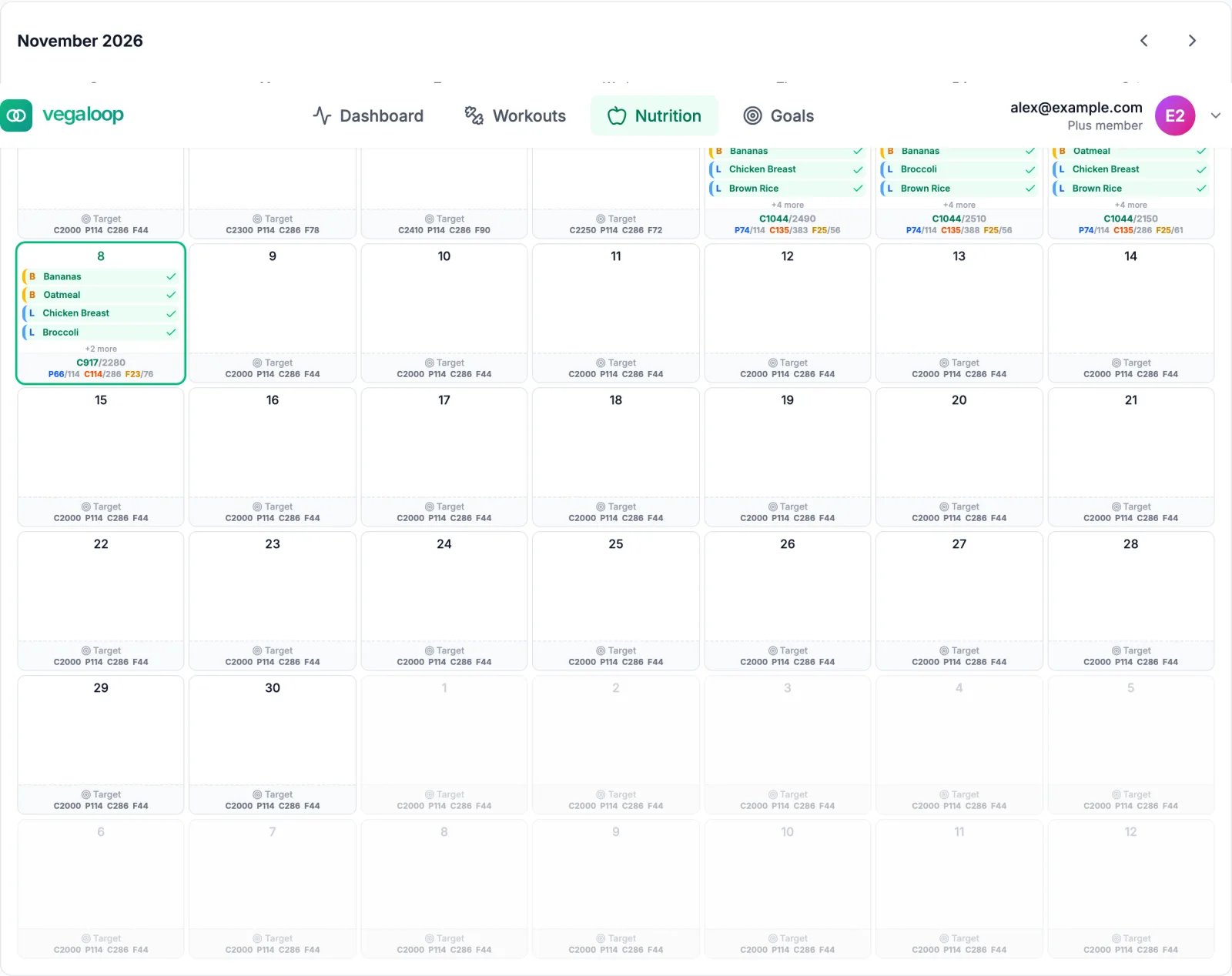
Each day shows its targets in short form: C for calories, P for protein, C for carbohydrate, F for fat. Use the arrows to move between months and select a day to see or log its meals. Meals can be logged for any day in the last 30 days; the server refuses older dates with Date too old: meal entries cannot be more than 30 days in the past.
Planned Meals
When a meal plan is scheduled, Planned Meals lists what the plan put on the selected day, each with Log, arrows to reorder, and a delete control. Log asks how many servings and records the meal with its full nutrition in one step. Reordering relabels the slots by position. A planned meal whose recipe is no longer available reads Recipe details unavailable; this meal can’t be logged; remove it and log the food by search. See Recipes and meal plans.
Today’s Meals

Today’s Meals lists everything logged for the day, grouped into Breakfast, Lunch, Dinner, and Snack. With nothing logged yet the button reads Add a meal; afterwards Add another meal. Both open the food search.
Logging a meal
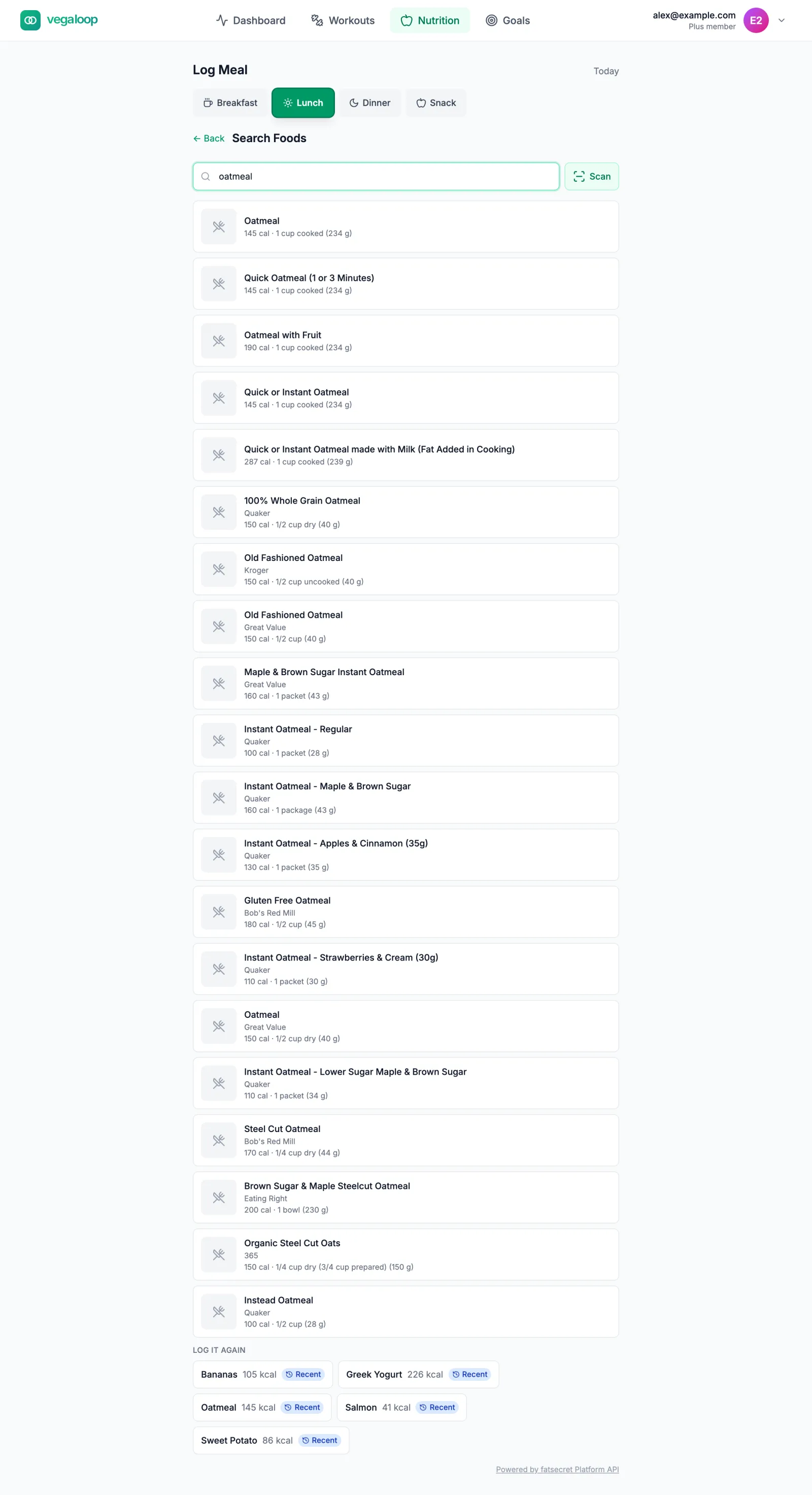
Pick the meal
Breakfast, Lunch, Dinner, or Snack. The chip matching the time of day is selected for you: Breakfast from 4 am, Lunch from 11, Snack from 3 pm, Dinner from 5 pm, and Snack again from 9 pm.
Find the food
Type two or more characters in Search foods; results appear as you pause. Or select Scan and hold a product barcode to the camera (type the digits if there is no camera). Log it again repeats something recent. No foods found means the database has nothing under that name; try a shorter or more generic term, or create a custom food.
Set the serving
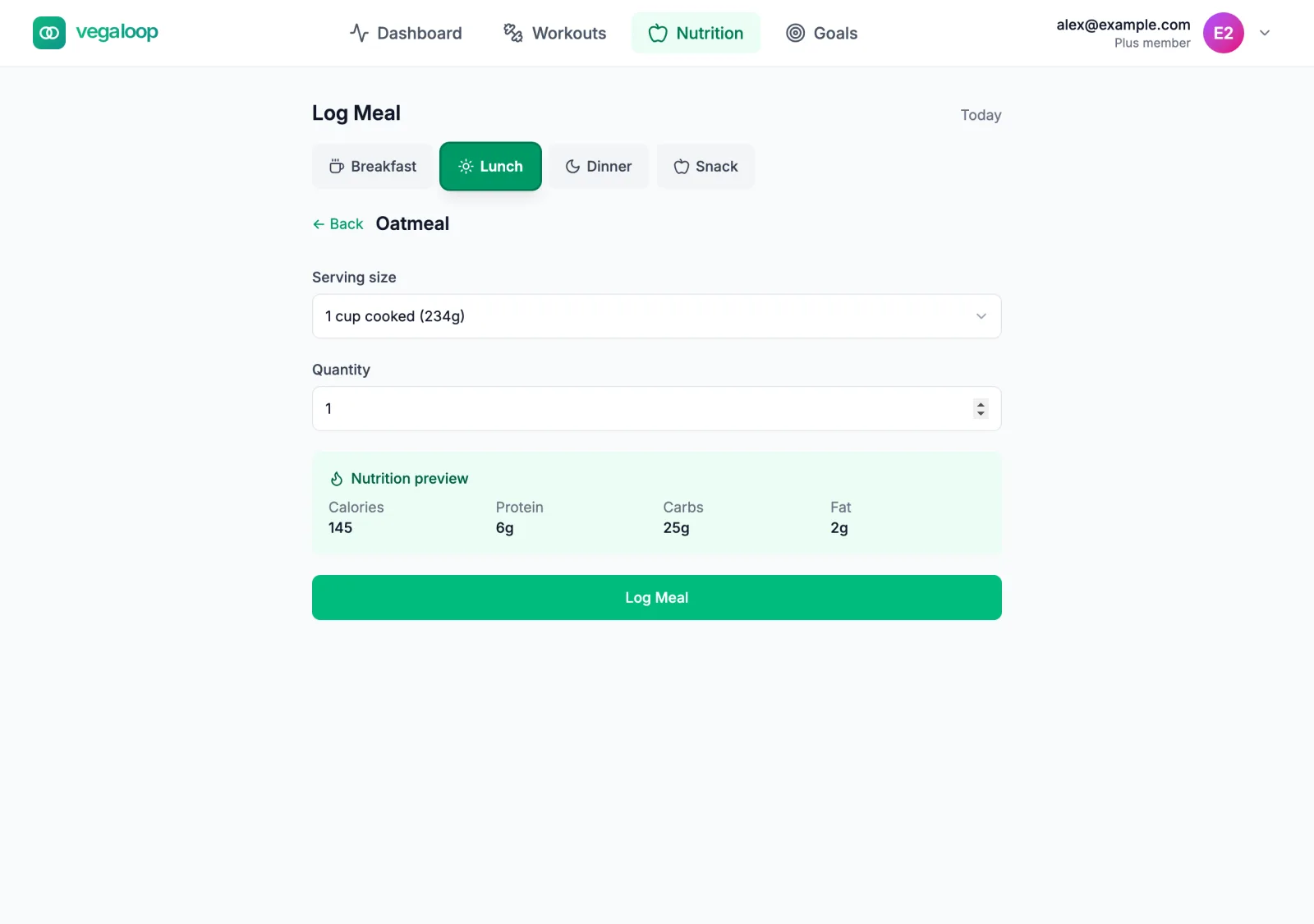
Choose the Serving size from the product’s options and a Quantity above zero; decimals such as 0.5 are fine. The Nutrition preview updates as you change them. Select Log Meal.
Adjust or finish
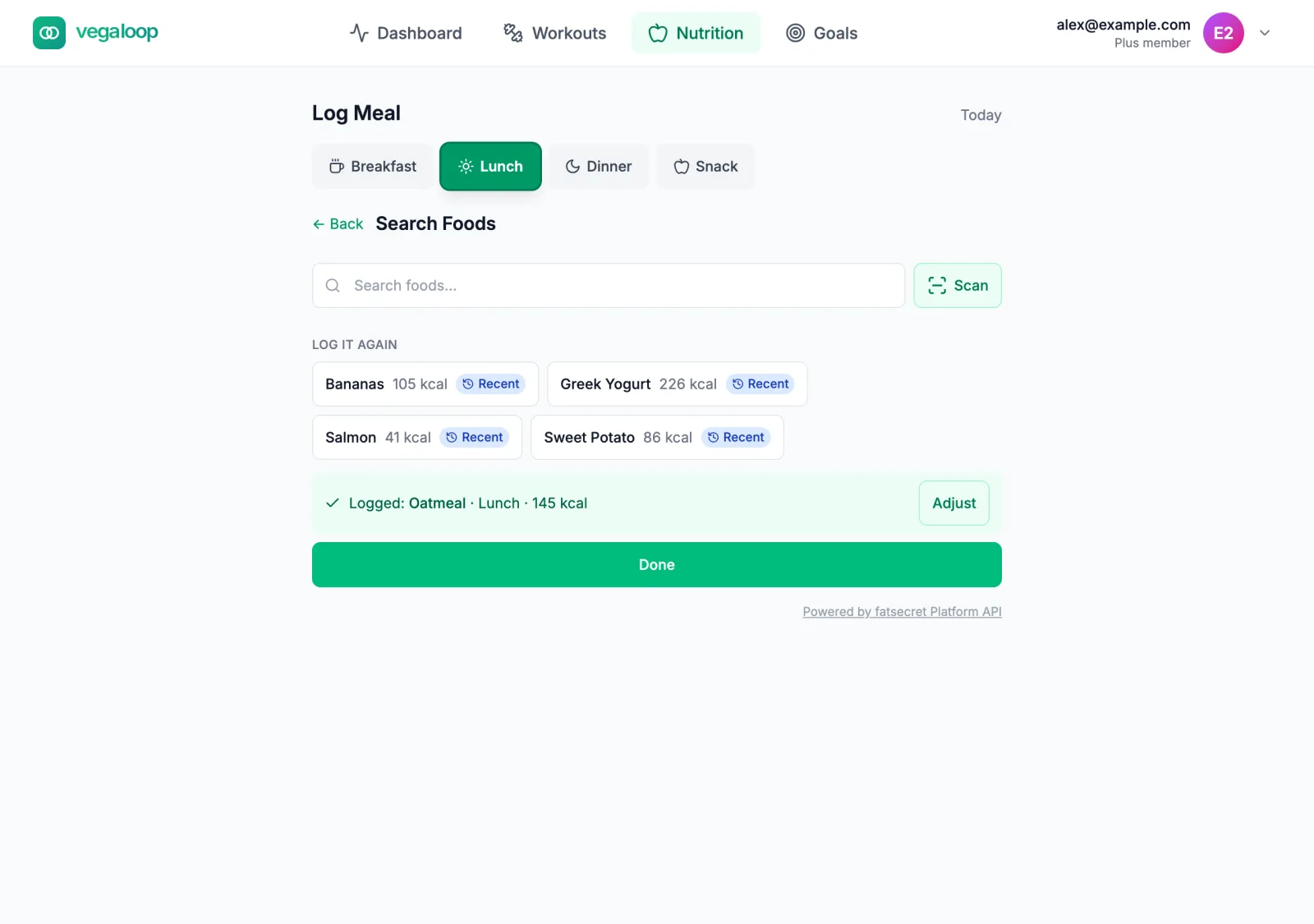
The confirmation reads Logged, the food, the slot, and the calories. Adjust reopens the serving; Done returns you to the tracker.
Results are powered by the fatsecret Platform API, credited at the bottom of the tracker. Generic foods are listed first, then branded products. Log it again covers the last 14 days: Usual marks a food logged in the same slot on three or more days, Recent one from the last two days, five at most. If a log fails the page reads Couldn’t log this meal with the reason and Nothing was saved.
Custom foods
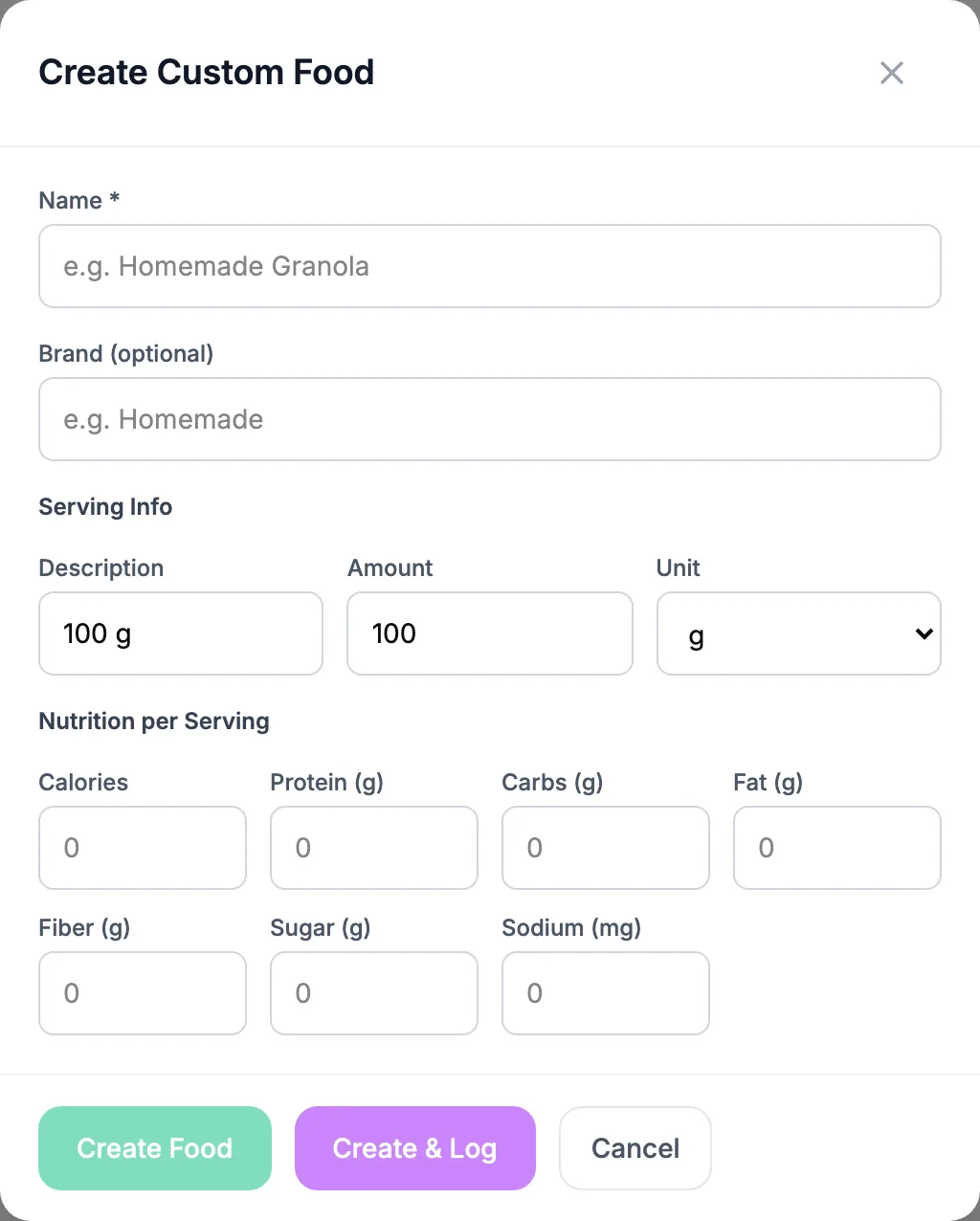
Create Custom Food at the bottom of the tracker saves a food that search cannot find. Enter a name, an optional brand, one serving (a description, an amount, and a unit), and the nutrition for that serving: calories, protein, carbs, fat, fiber, sugar, and sodium, straight from the label. Create & Log saves it and logs one serving as a snack right away; change the slot afterwards with Adjust. Create Food saves it without logging.
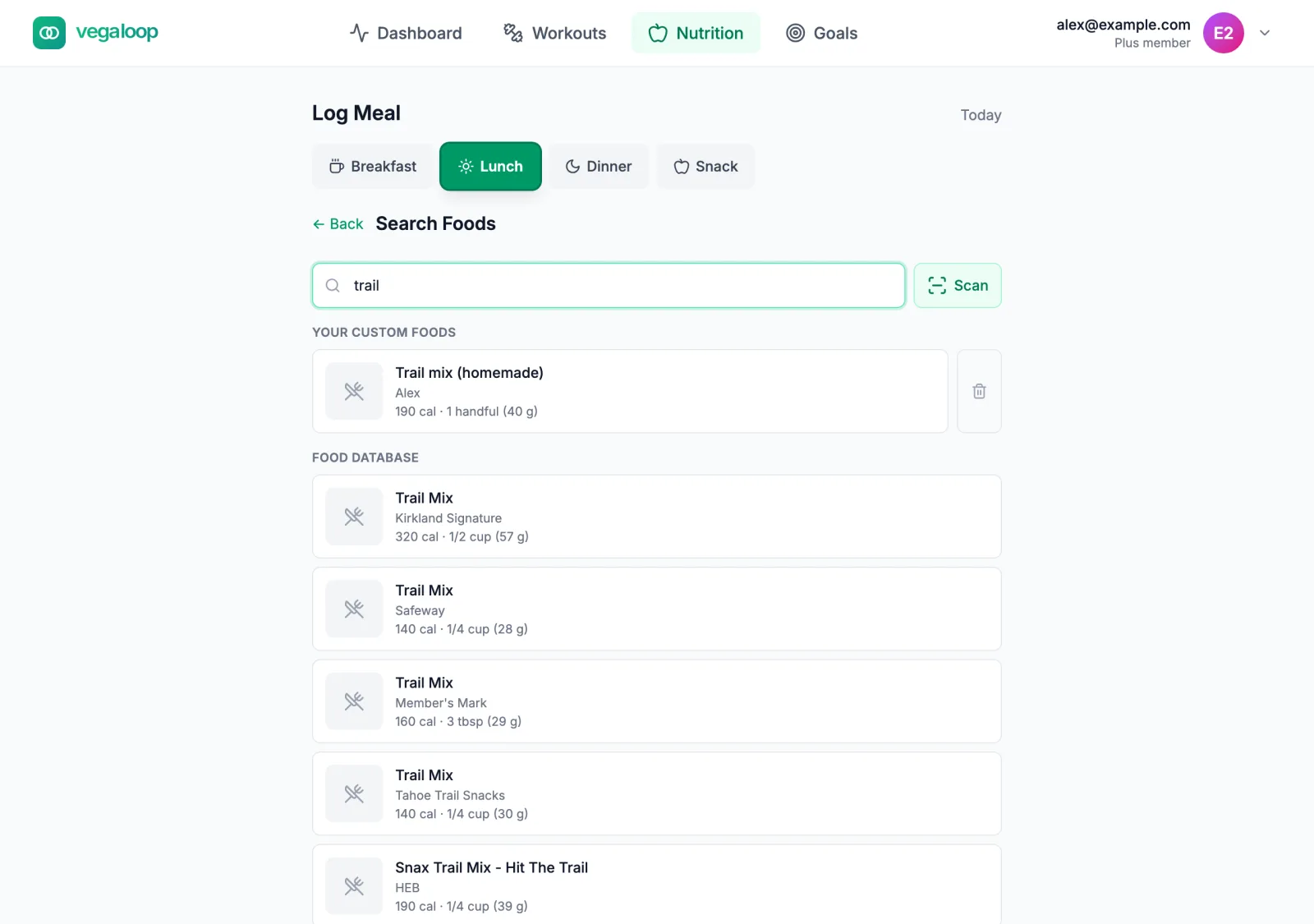
Custom foods appear in food search under their own heading, Your custom foods, above the Food database results whenever their name or brand matches what you typed. Each one logs like any other result, and the trash control next to it deletes it after a confirmation (Delete “name” from your custom foods? Meals you already logged with it are kept.). A custom food cannot be edited; delete it and create a corrected one. If a save fails the dialog says so: Couldn’t save this food: (reason). Nothing was saved.
Water
Water is logged from the dashboard only: the Hydration tile logs one 250 ml glass per press. The daily water target lives under Nutrition Targets in Settings. Water entries are not listed in Today’s Meals and cannot be edited afterwards; if a press fails, the tile returns to its previous value without a message, so check it after pressing. The next day starts from zero.
Changing or deleting a logged meal
A row in Today’s Meals has a delete control only. To change a meal, use Adjust: it appears on the meal’s row in the dashboard’s Recent Activity feed, and in the Logged list while you are still on the Log Meal page. Adjust changes the serving size, the quantity, and the meal slot. A meal’s date and time cannot be changed; delete it and log it again on the right day. Totals, trends, and the day’s streak credit update at once.
In a phone browser