The dashboard
The dashboard is the first screen after you sign in. It summarises what you log and sync: today’s readiness, the next session, and the week’s totals.
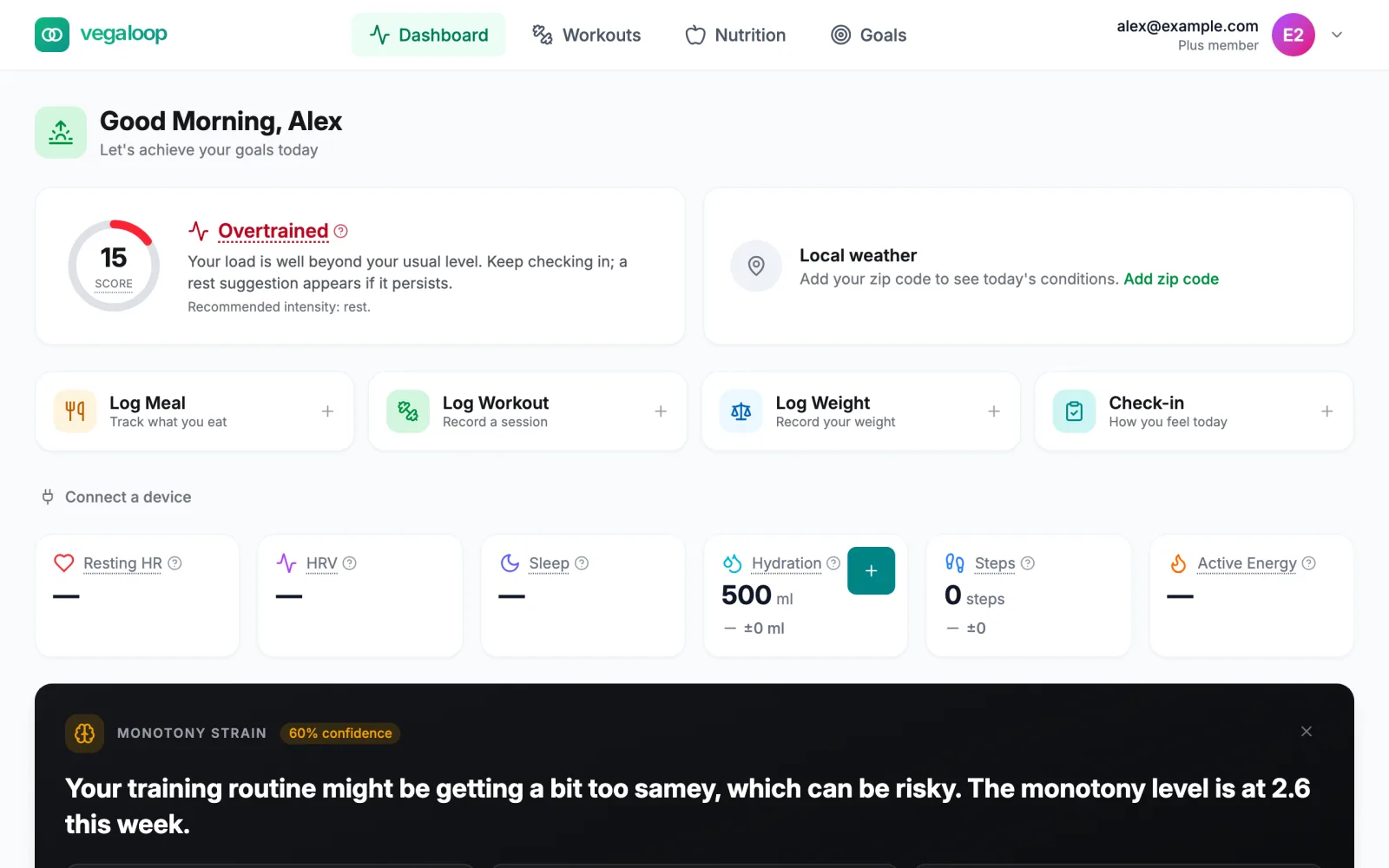
The greeting follows the clock: Good Morning from 5 am, Good Afternoon from noon, Good Evening from 5 pm until 5 am. If the page cannot load it reads Unable to load dashboard with a Retry button; see A page will not load.
Readiness
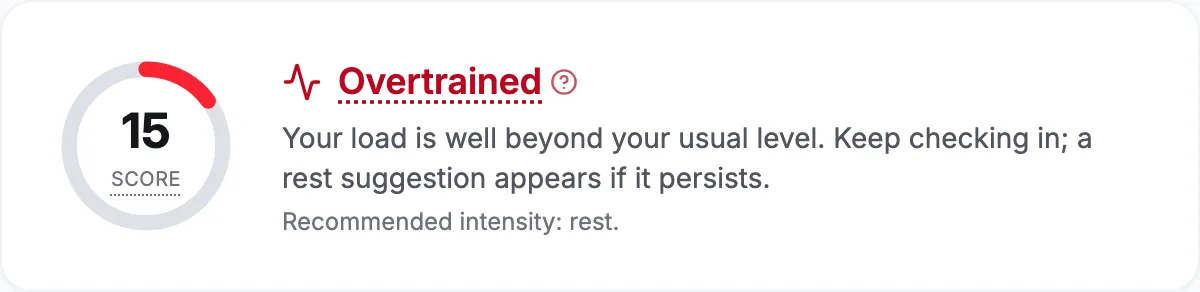
The readiness card shows today’s level, a sentence explaining it, and Recommended intensity for today’s session.
| Level | What the card says |
|---|---|
| Fresh | You’re well recovered, a strong day for a hard session. |
| Ready | Balanced load. Good to train as planned. |
| Neutral | Steady state. Train as planned. |
| Fatigued | Your training load is high, which is normal in a build. Your check-ins decide whether a session changes. |
| Overtrained | Your load is well beyond your usual level. Keep checking in; a rest suggestion appears if it persists. |
For about the first week on a new account the card reads Still building your baseline: readiness firms up after a week of workouts. On the Free plan the card is a locked teaser, Daily training readiness with guidance, part of Plus. See Understand your readiness and Training load and readiness.
Local weather
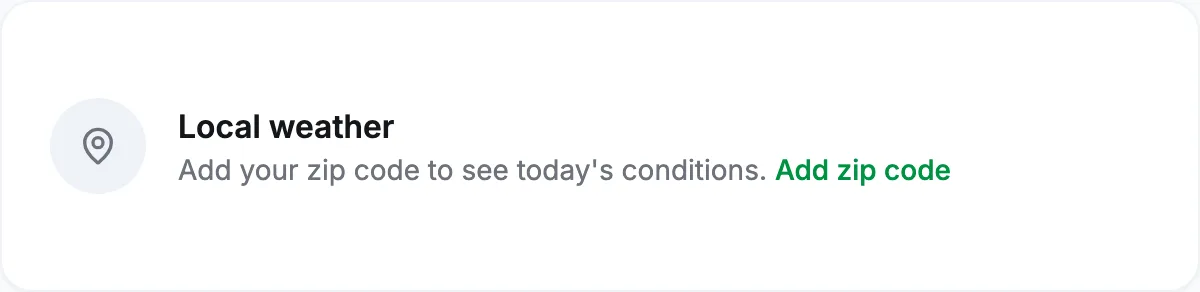
With a US ZIP code on your profile, the card shows today’s high in your unit system, the conditions, the feels-like temperature, and humidity, and the training calendar shows a forecast for the next 7 days. Without one it reads Add your zip code to see today’s conditions with an Add zip code link that opens the profile at the right field. Forecasts come from the US National Weather Service and cover United States locations only. See Weather is not showing.
Suggestions
On Plus, a Suggestion for today or Suggestion for tomorrow card appears above the quick actions when readiness, your check-in, or a missed session means a planned session should change. Accept applies it, with an Undo afterwards; Not today dismisses it; Leave it lets a past session go. Full detail in Insights and suggestions.
Quick actions

Each button opens a panel directly under the row, so you stay on the dashboard.
| Action | What opens |
|---|---|
| Log Meal | Meal chips, food search, barcode scan, planned meals, and your recent foods. |
| Log Workout | A short form for a session you did without a device. |
| Log Weight | A weight field with a kg or lb toggle and Save weight. |
| Check-in | The morning check-in: five 1 to 5 ratings and Save check-in. |
A Connect a device link next to them opens Integrations. Log your first day walks through each action.
Vitals
Six tiles show today’s Resting HR, HRV, Sleep, Hydration, Steps, and Active Energy, each with a chip comparing it with yesterday. A dash means nothing has arrived for that metric today. Hydration has a plus button that logs one 250 ml glass; this is the only place water is logged, and if a press fails the tile returns to its previous value with no message. Everything except hydration comes from a connected device; sleep cannot be logged by hand.
Insights, readiness breakdown, and trends
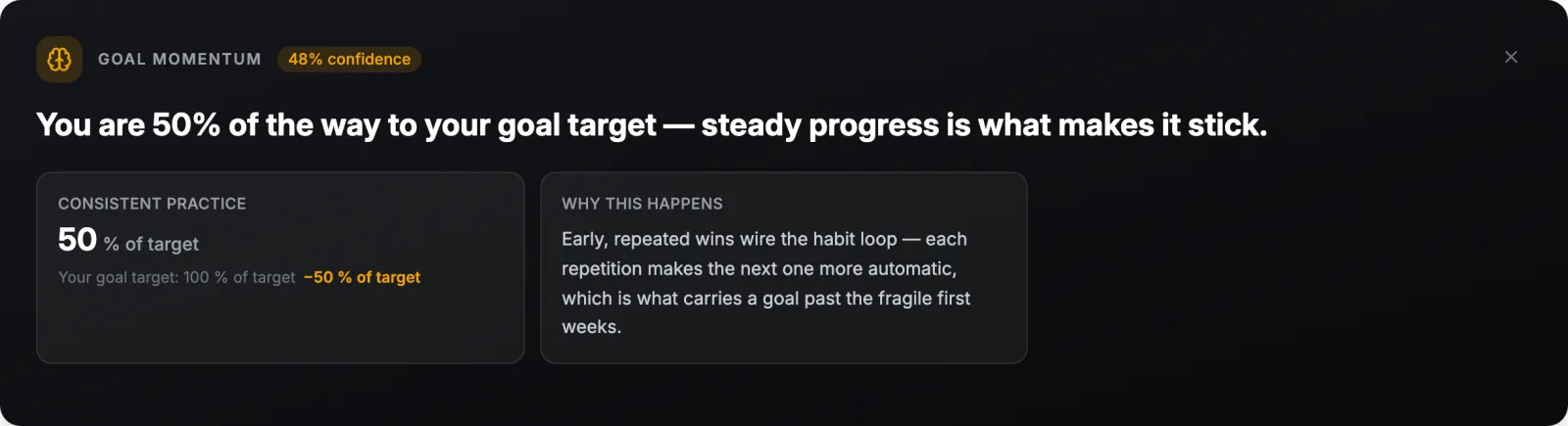
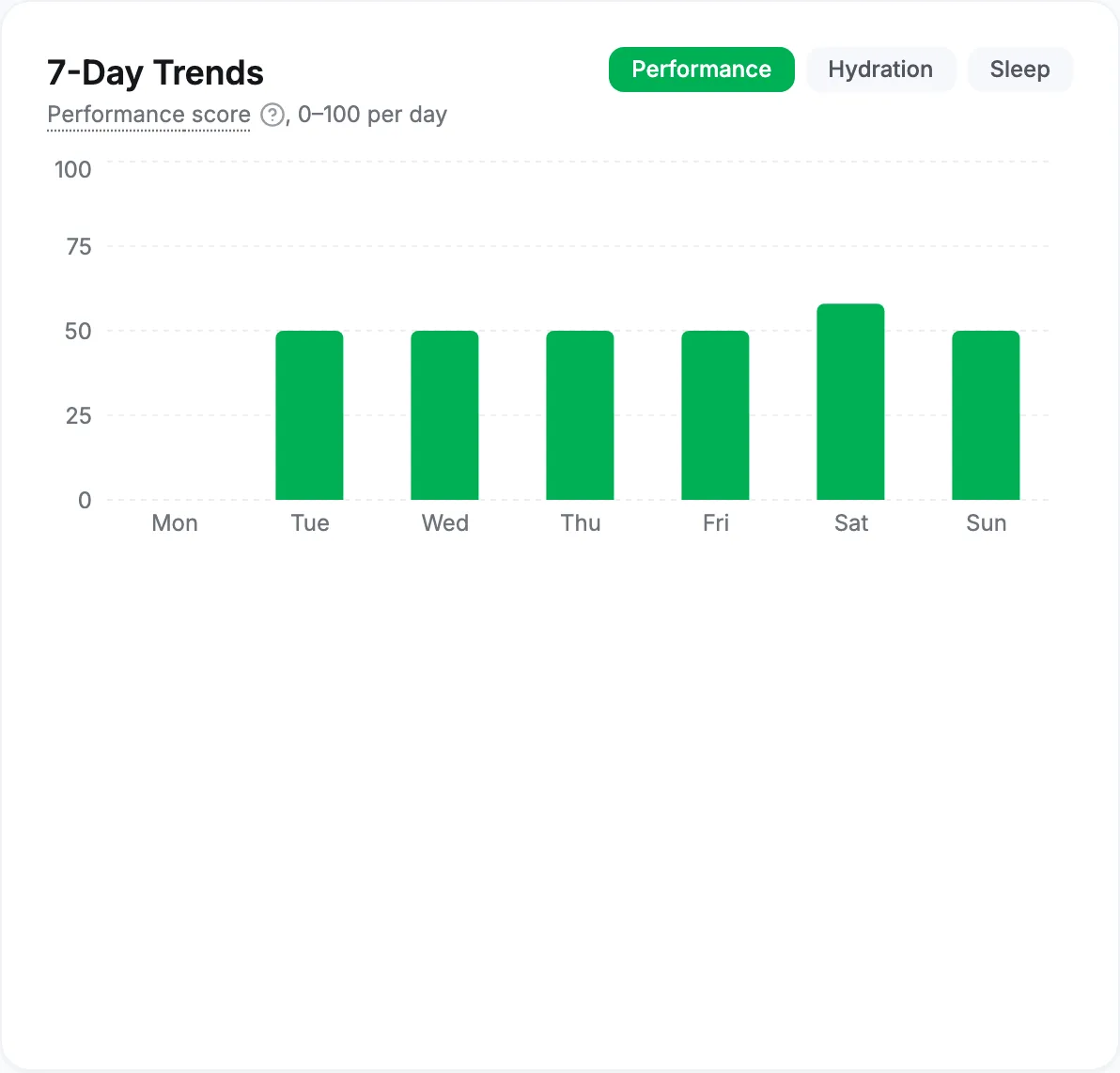
On Plus, this block holds the insight feed, the readiness breakdown, the 7-day trends, and an intraday heart rate chart. When a pattern appears across your training, nutrition, sleep, or goals, a card appears with a confidence label, why it is happening, and a suggestion. Close it with the X; it returns if the pattern persists. With no pattern to report the block reads No new insights right now. Keep logging and syncing, and they will appear as patterns emerge.
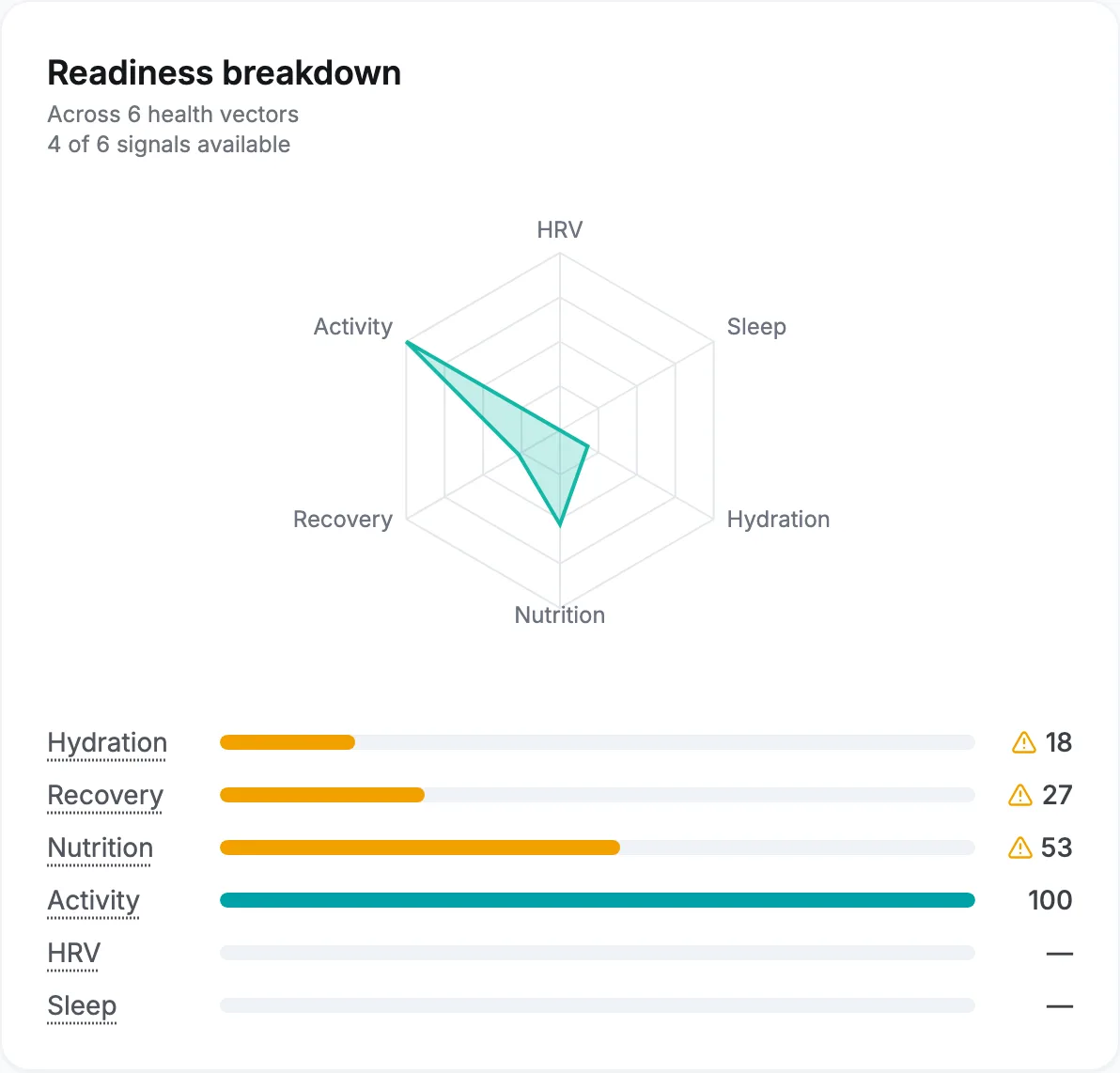
The breakdown shows the signals behind readiness and how many of them have data today. Next to it, 7-Day Trends plots your performance score, hydration, or sleep over the last week. The intraday chart reads No intraday data yet today until a device sends heart rate for the day.
On Free the block is a single locked panel, Unlock training insights, with an Upgrade to Plus button.

Achievements and weekly charts

Recent Achievements lists the badges you have earned and your current streak. Until you have one it reads Complete workouts and log meals to earn achievements. The eight badges and the streak rule are in Make the streak work for you.
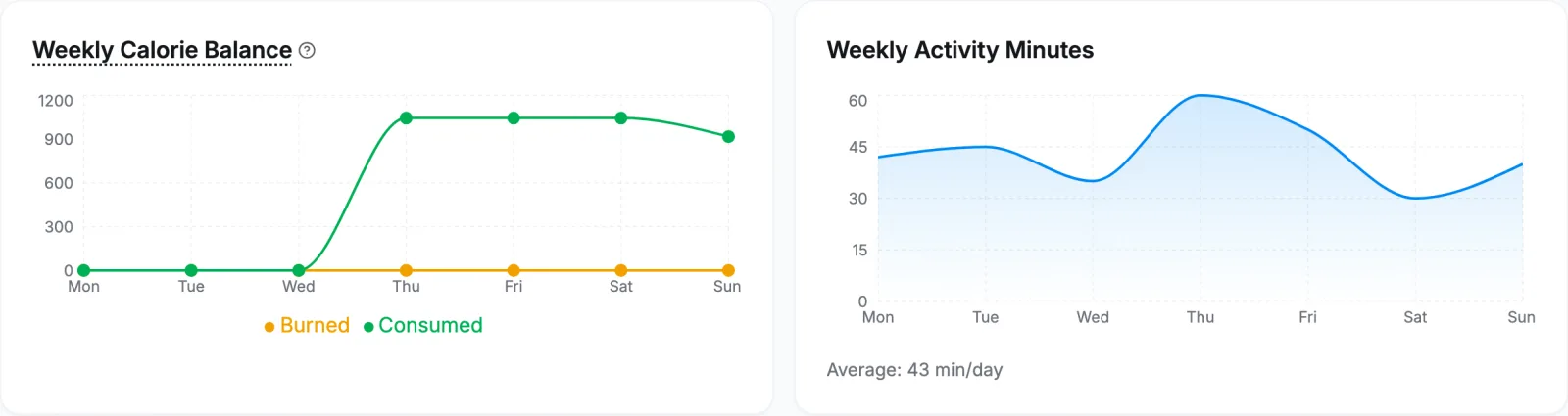
Weekly Calorie Balance compares calories burned with calories consumed for each day of the week. Weekly Activity Minutes totals your workouts per day and shows the average.
Fuel plan this week

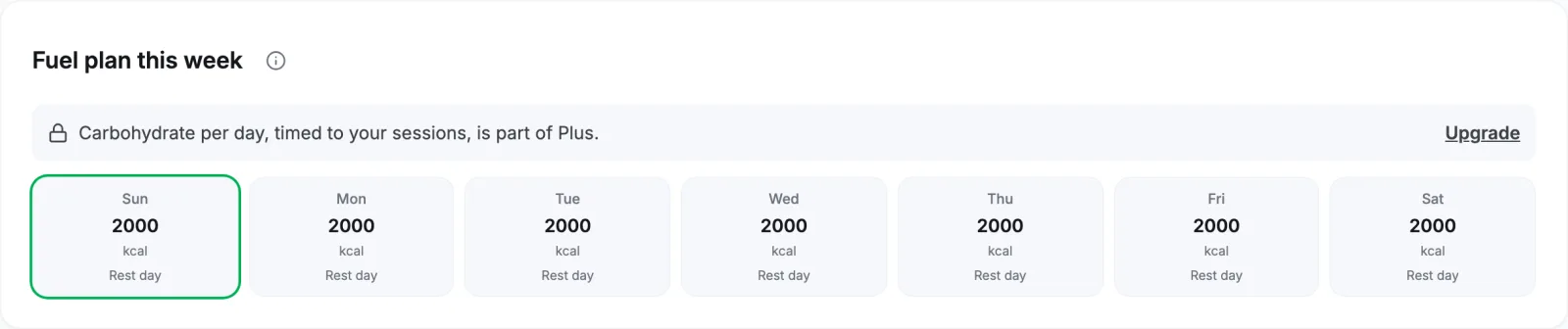
One tile per day for the next 7 days with that day’s calorie target and, on Plus, the carbohydrate target timed to your sessions. Days with a planned session get more; rest days get the base. On Free the carbohydrate line reads Unlock carbohydrate targets with Plus. See Fuel targets explained.
Today’s Macros and Daily Goal Progress
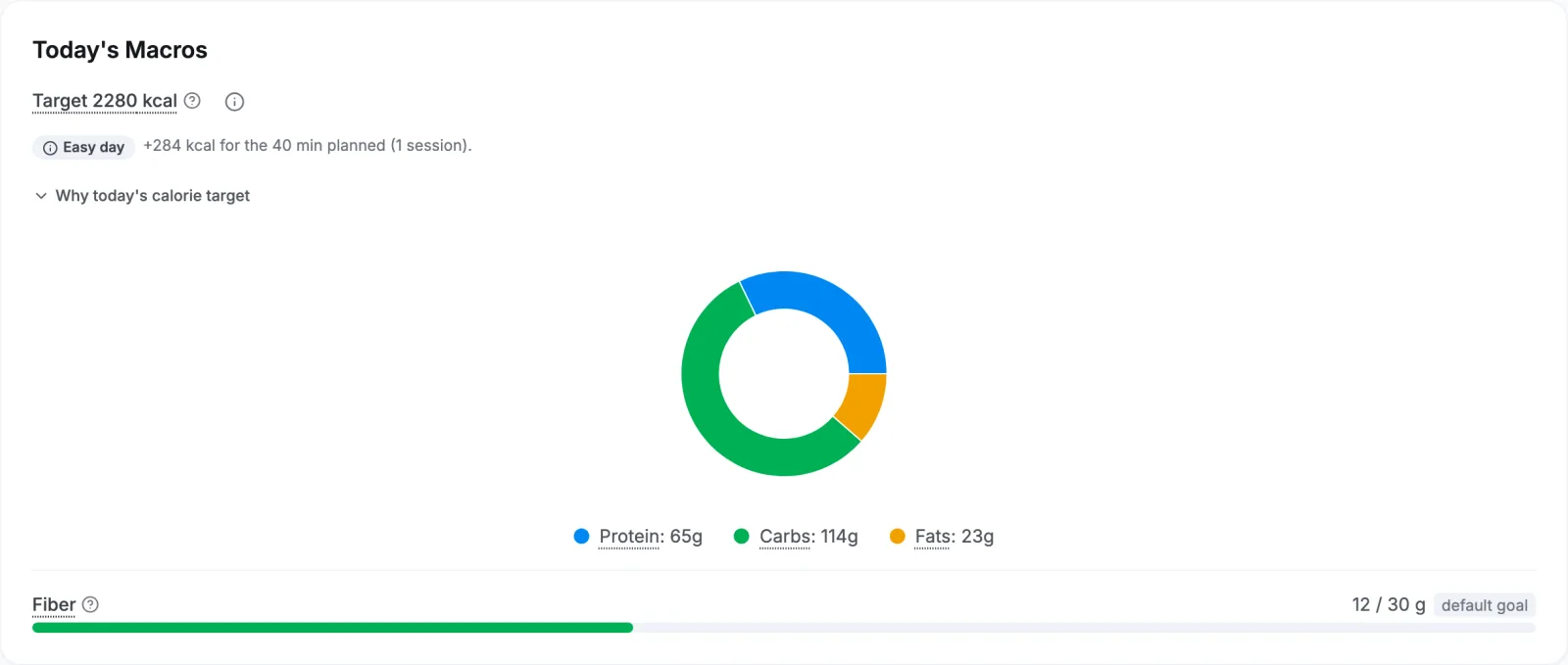
Today’s Macros shows the day’s calorie target and, once you log a meal, the protein, carbohydrate, fat, and fiber you have eaten. Why today’s calorie target opens the inputs behind the number.

Daily Goal Progress tracks up to four active goals. Goals you track by hand get a Record progress button here. With none it reads No active goals yet with a Create Goal link to the marketplace. See Goals and challenges.
Recent Activity
The feed at the bottom lists everything logged or synced, newest first. A meal row has Adjust (serving, quantity, slot) and Delete; a workout row has Delete only; sleep rows have neither. Deleting asks you to confirm. Until you log something it reads Log a workout or meal, or sync a device, to start your activity feed. The meals themselves are explained in The nutrition tracker.
In a phone browser
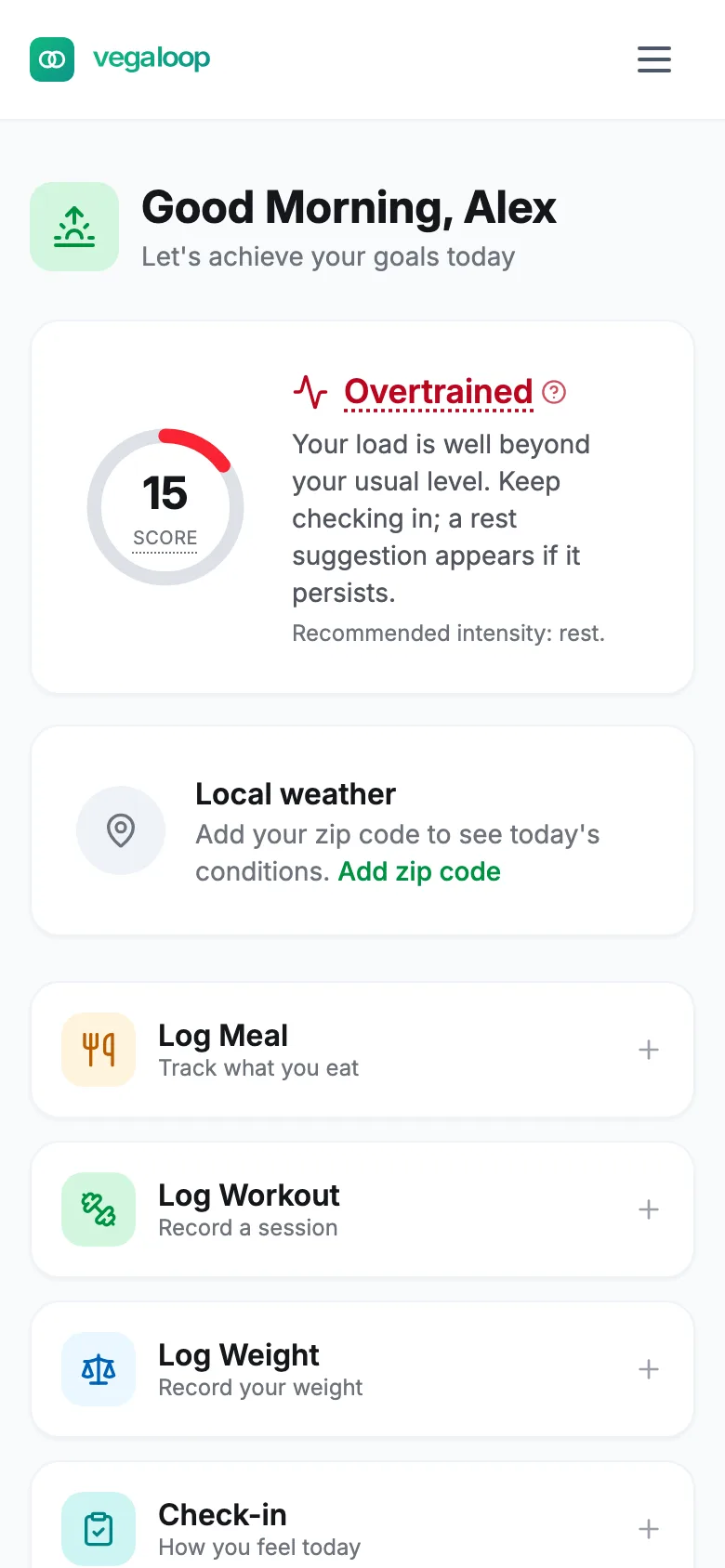
The same cards stack in one column and the navigation moves into the menu button at the top right. There is no dark mode today; the app is always light.