A tour of the app
VegaLoop has four main areas in the top bar: Dashboard, Workouts, Nutrition, and Goals. Settings and your profile are under the account menu at the top right.
Dashboard
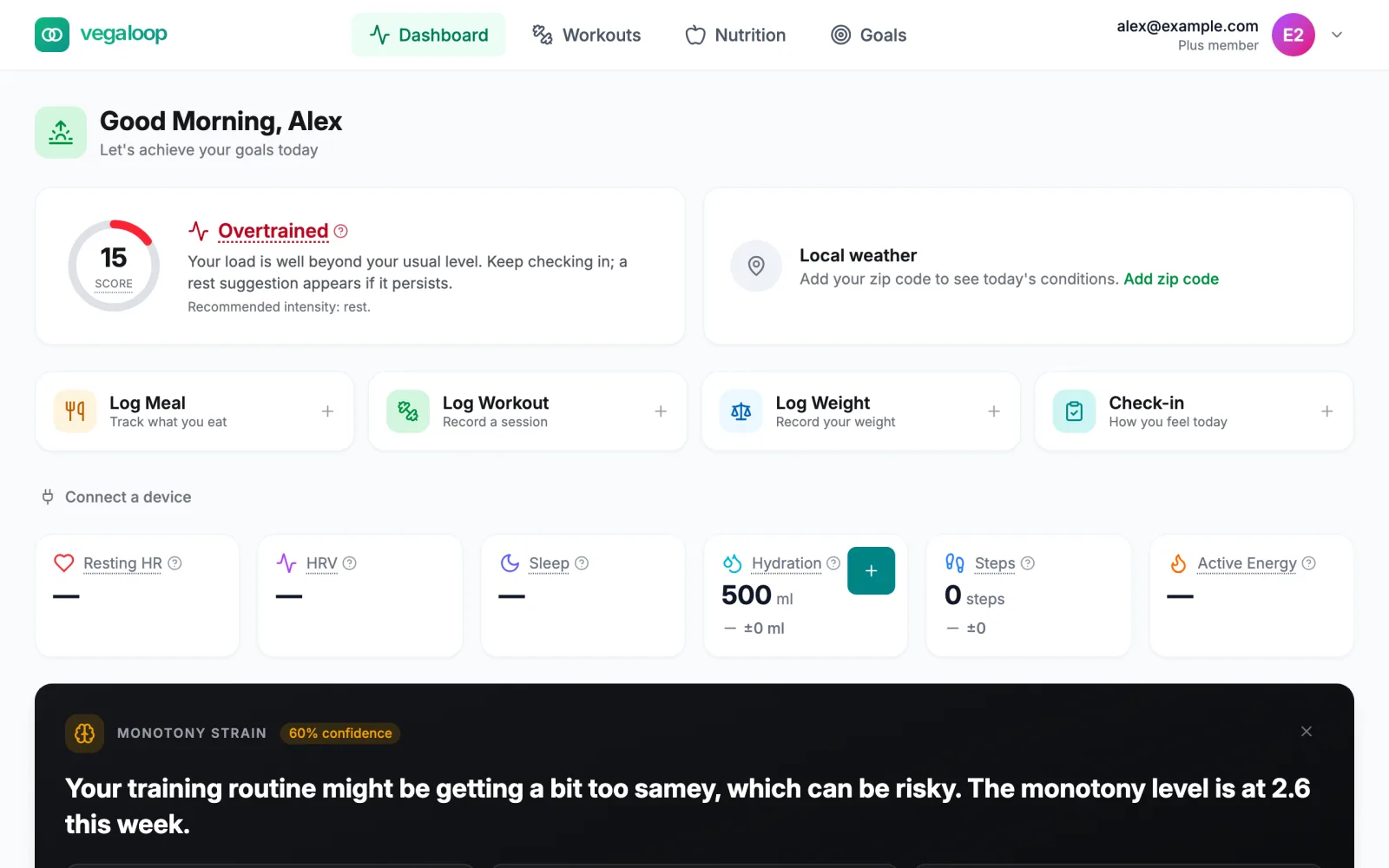
The dashboard shows today at a glance: a greeting, your readiness, the local weather, four quick actions for logging, today’s vitals from your devices, and the week’s charts. Below those sit the insight feed, the fuel plan for the week, today’s macros, goal progress, and the activity feed. The full detail is in The dashboard.
Workouts
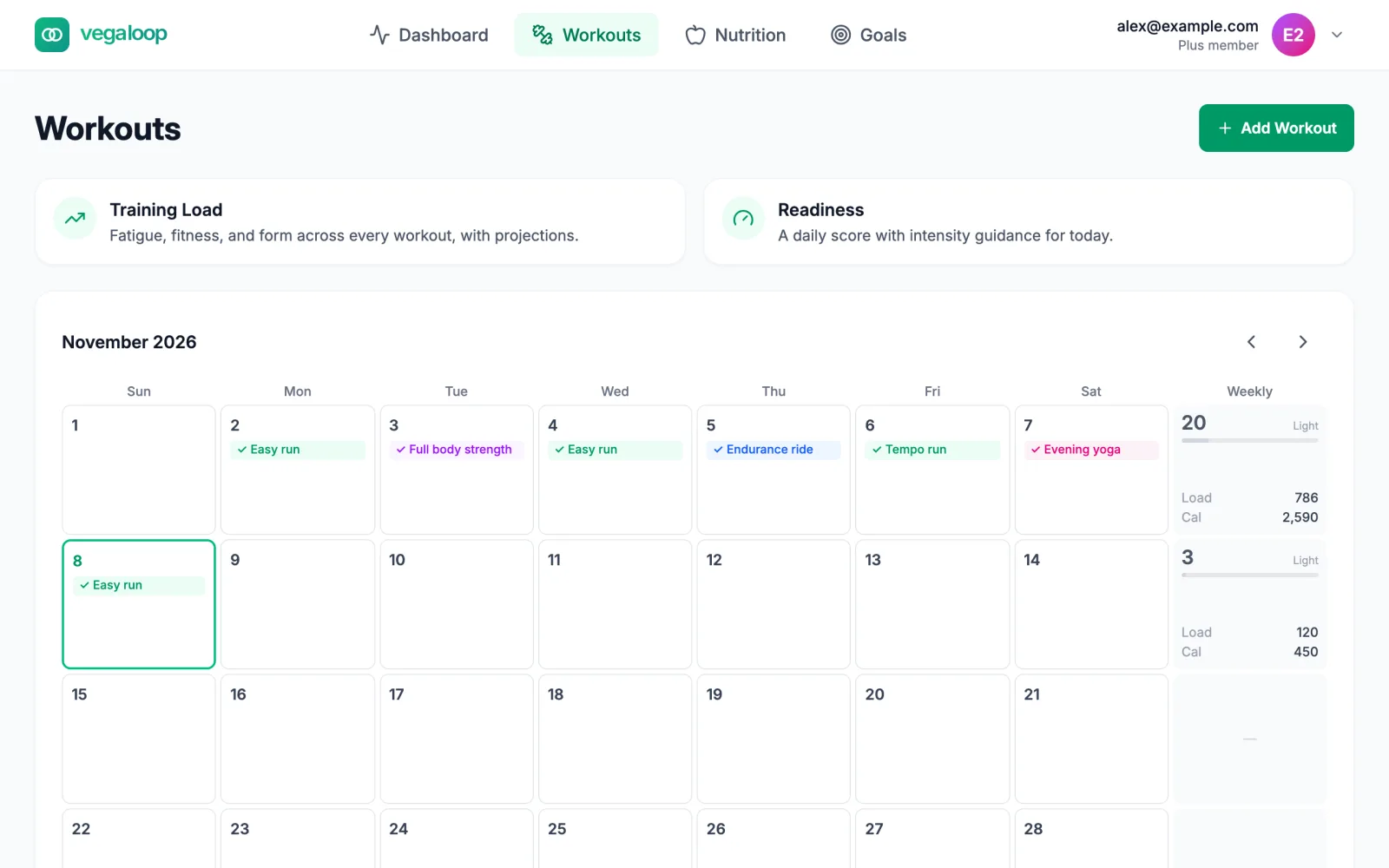
The Workouts page holds the training calendar, an Add Workout button for sessions you did without a device, and the workout library of individual workouts and multi-week programs. The two cards at the top open the Training Load and Training Readiness pages, which are part of Plus. See Workouts and the training calendar and Training programs.
Nutrition
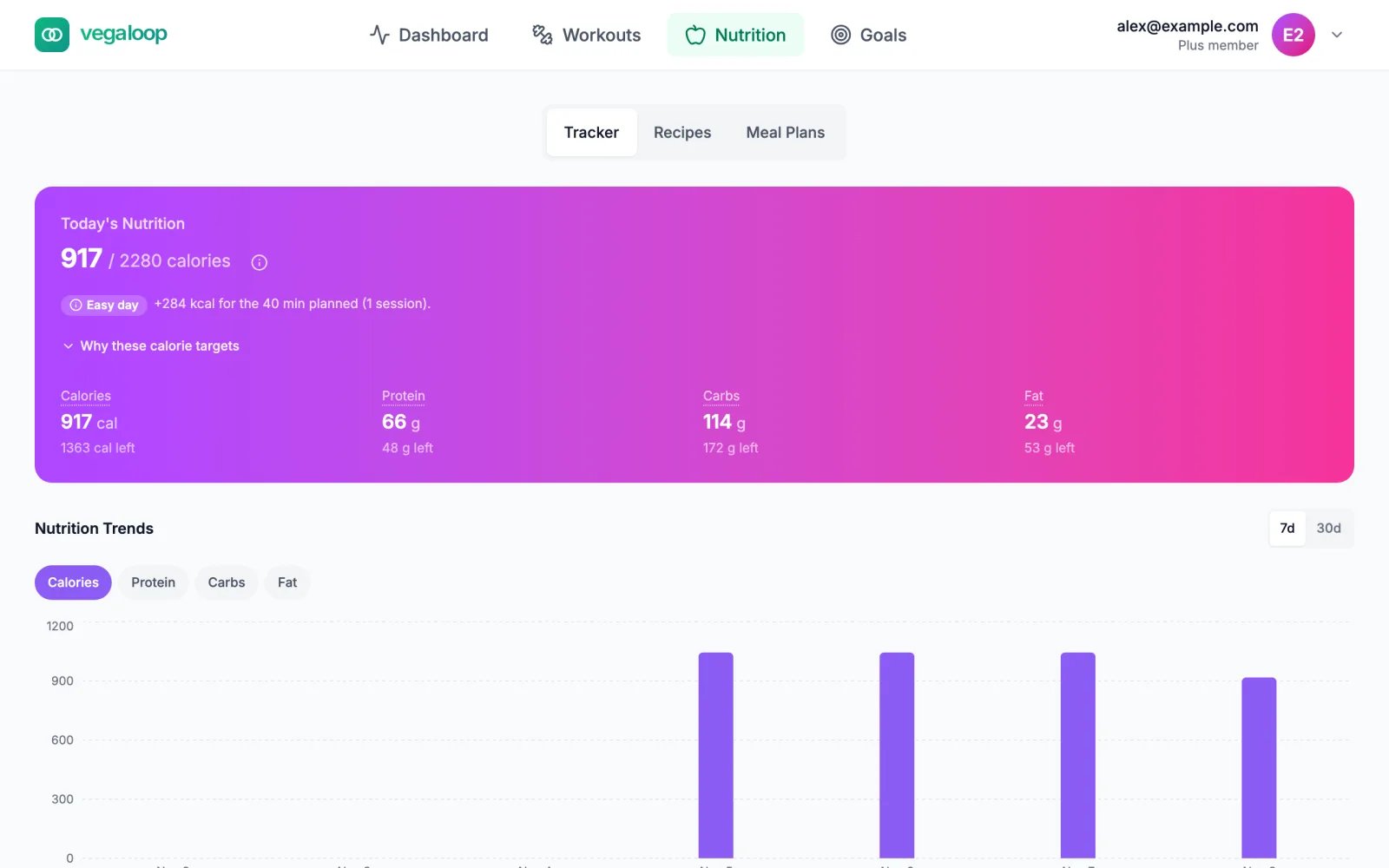
The Nutrition page has three tabs. Tracker logs meals and water against today’s targets and holds the month calendar. Recipes is the recipe library, with your own, imported, and shared recipes. Meal Plans holds ready-made and custom plans you can schedule onto the calendar. See The nutrition tracker and Recipes and meal plans.
Goals
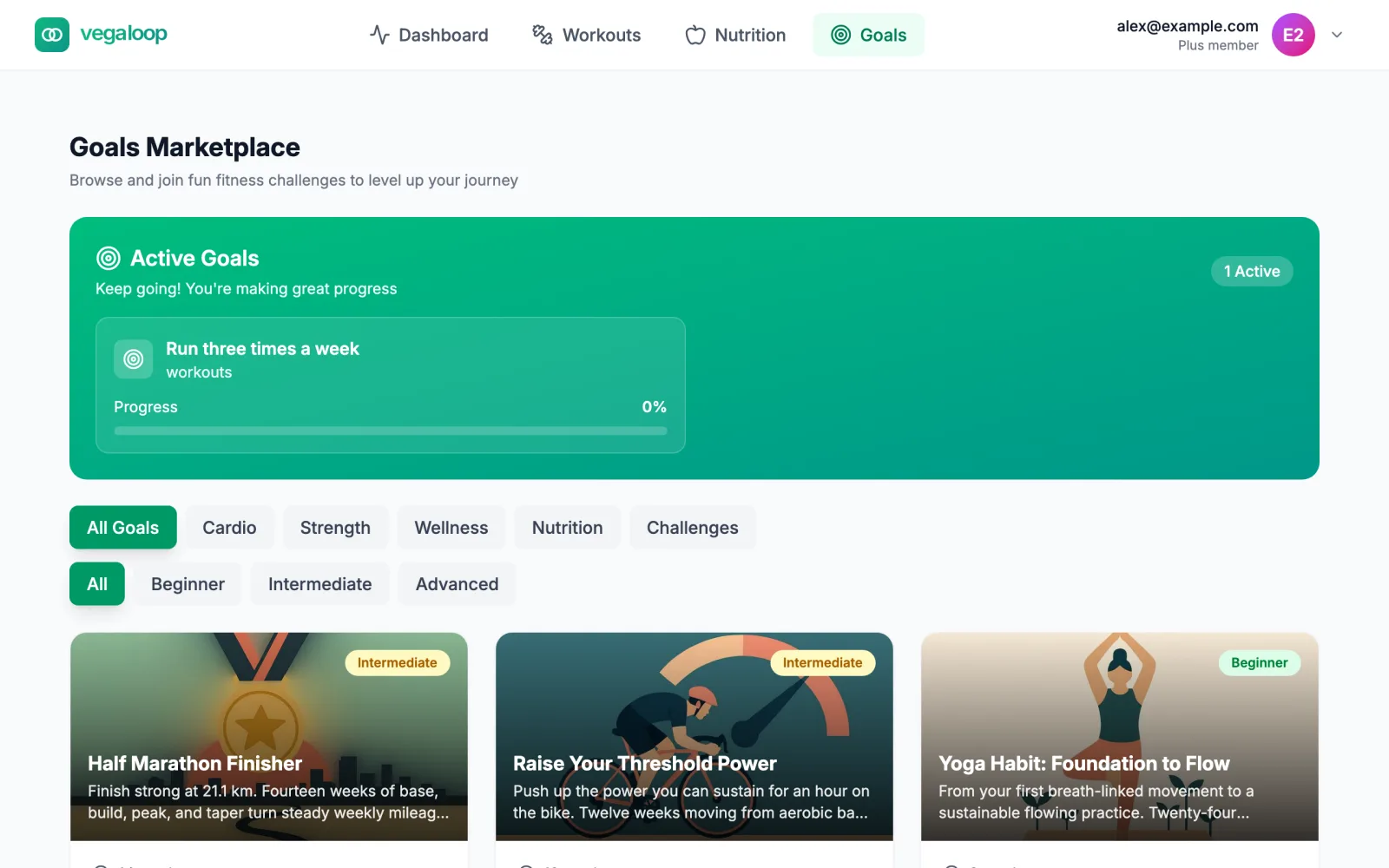
The Goals page is the Goals Marketplace: ready-made challenges with badges, filtered by category and level, with your active and recently completed goals at the top. Progress is measured from what you log. See Goals and challenges.
Account menu
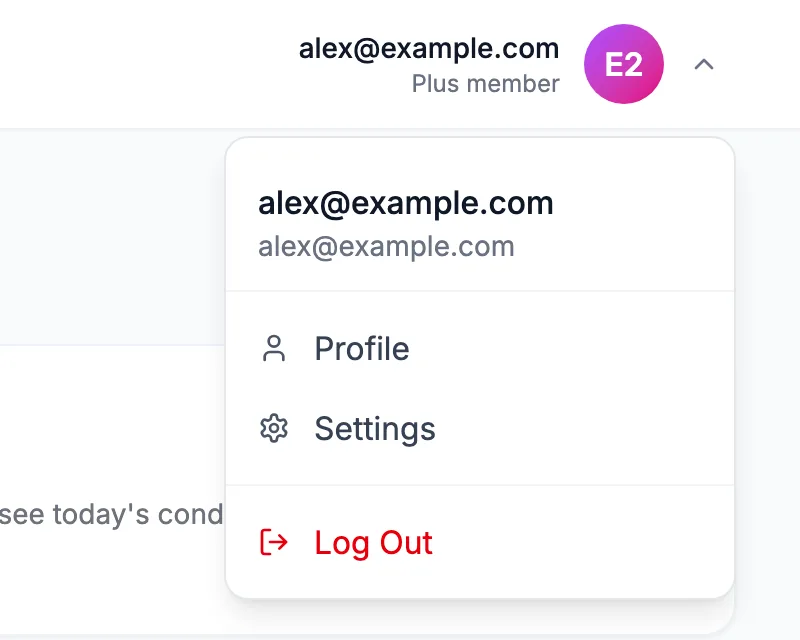
The circle at the top right opens Profile, Settings, and Log Out, with your email and plan underneath: Free member or Plus member. Profile holds your personal details, fitness profile per sport, and biometrics. Settings holds units, timezone, notification preferences, nutrition and activity targets, connected devices, billing, security, and account tools. See Settings reference.
Upgrade
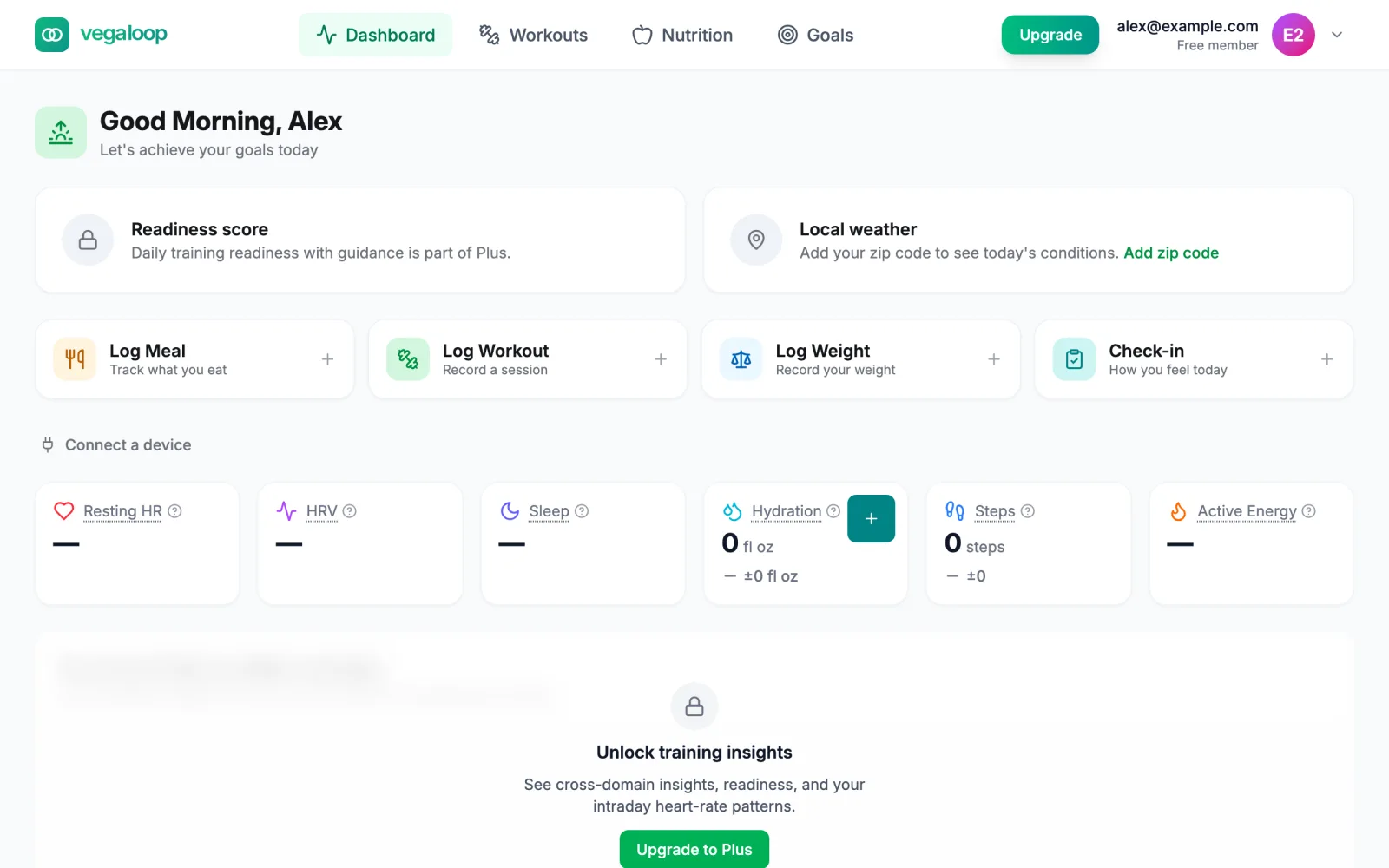
On the Free plan an Upgrade button sits in the header next to the account menu. It opens the Plans page. Locked features around the app show an inline notice with an upgrade link, and trying an action that needs Plus (the readiness card, a second goal, a Plus program) opens the VegaLoop Plus dialog instead. See Choose your plan.
In a phone browser
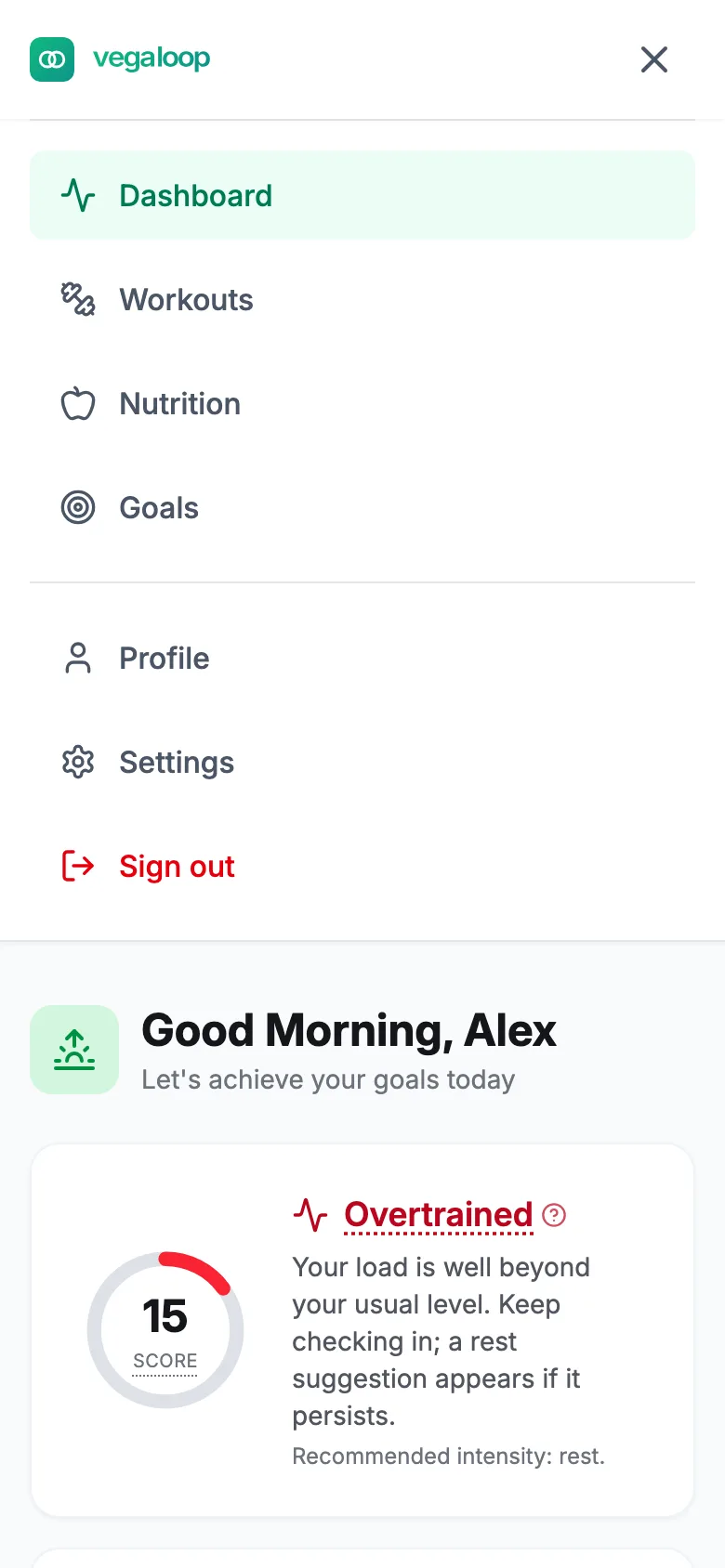
On a narrow screen the four areas move into a menu behind the button at the top right, cards stack in one column, and the training calendar becomes a day-by-day list. The account options in that menu are Profile, Settings, and Sign out. Every feature is available at every width. Dragging a session to another day on the calendar needs a mouse or trackpad, so on a phone you change its date from the session instead.
Pages you may land on
- Page Not Found means the link is wrong or the page moved. Back to Dashboard takes you home.
- Something went wrong is the app’s crash screen. Try Again retries the view; if that fails, reload the browser tab. If it persists, see A page will not load.