Create your account
VegaLoop runs in your browser at app.vegaloop.com. There is nothing to install. The same account works on a laptop, a tablet, and a phone browser, and anything you log in one place is there in the others.
Before you start
- A current browser. Chrome, Edge, Firefox, or Safari from the last year or so. The app is designed for a laptop screen and reflows for a phone browser.
- An email address you can read today. The confirmation code goes there.
- Age. You must be at least 13 to use VegaLoop. If you are under 18, a parent or guardian needs to agree to the Terms of Service.
Sign up
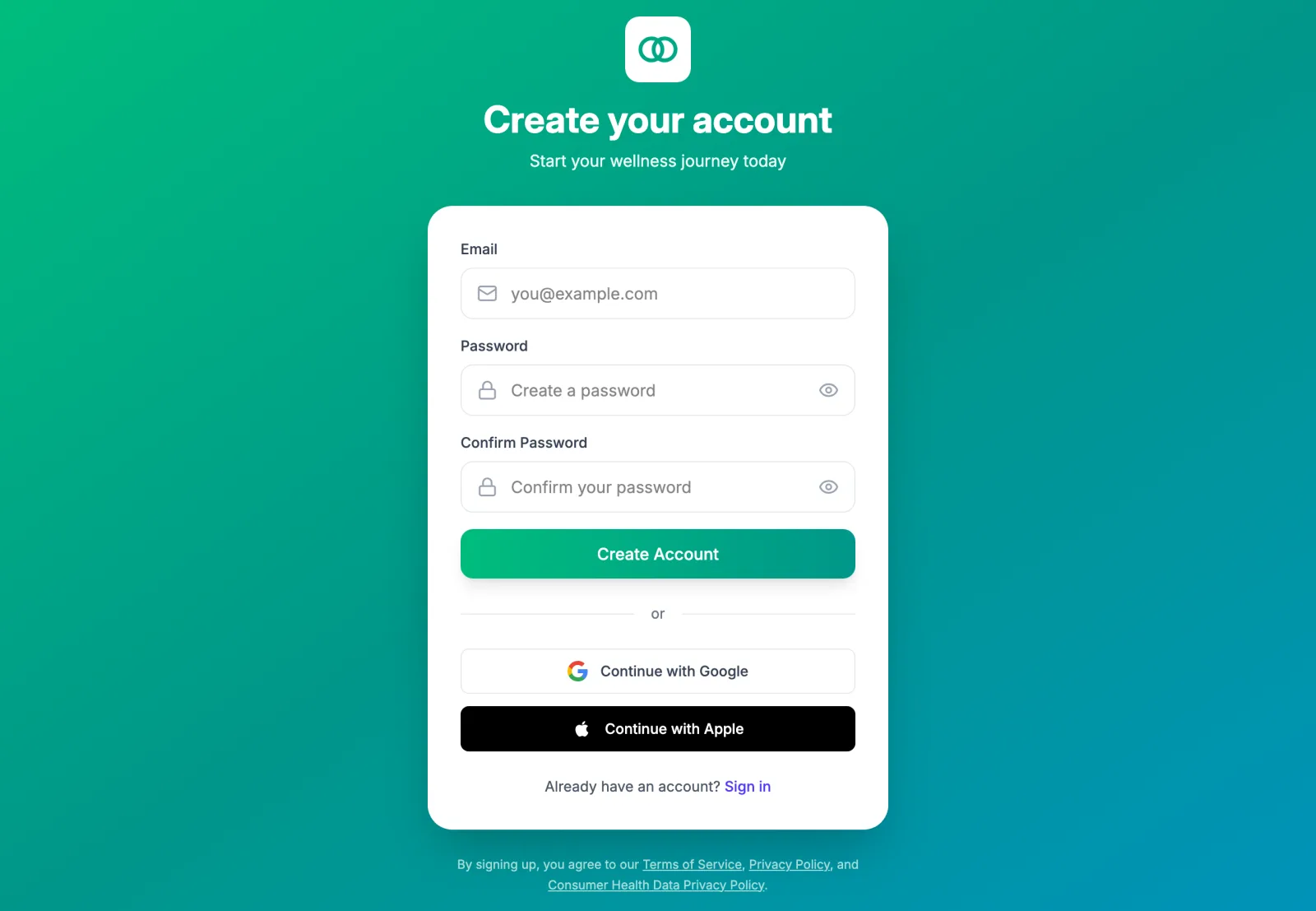
Open the sign-up page
Go to app.vegaloop.com/signup. There is no invite or access code. If you arrived from a VegaLoop campaign link you land here directly.
Choose how you will sign in
Enter an email and a password, or use Continue with Google or Continue with Apple.
Passwords need at least 8 characters with an uppercase letter, a lowercase letter, a number, and a symbol. The form says Password does not meet strength requirements until it does, and Passwords do not match if the confirmation differs. The eye icon shows what you typed.
By creating an account you agree to the Terms of Service, the Privacy Policy, and the Consumer Health Data Privacy Policy, all linked under the button.
Enter the six-digit code
VegaLoop emails you a six-digit code with the subject line Your VegaLoop verification code. Enter it and choose Verify & Sign In. The code is valid for 24 hours. Resend Code sends a fresh one if the first did not arrive; check spam and promotions folders first.
The page remembers your password for five minutes so it can sign you in once the code is accepted; after that, or after a refresh, it asks for the password again. The email’s link opens this page with the code filled in. Already verified? takes you to sign-in. Error messages here are listed in Cannot sign in.
Staying signed in
Keep me signed in on the sign-in page keeps the session in that browser for up to 7 days. Without it, the session ends when you close the tab. Every session ends 7 days after sign-in regardless, so expect to sign in again about once a week. Google and Apple sign-ins always end when the tab closes; the checkbox does not apply to them. The page you were on is remembered for a day, so signing in again returns you there.
The setup questions
The first time you open the dashboard a short wizard, Welcome to VegaLoop!, asks about you. Every step has I’ll do this later, and everything it sets can be changed from your profile. The wizard is remembered in the browser you dismissed it in, so you may see it again in another browser.
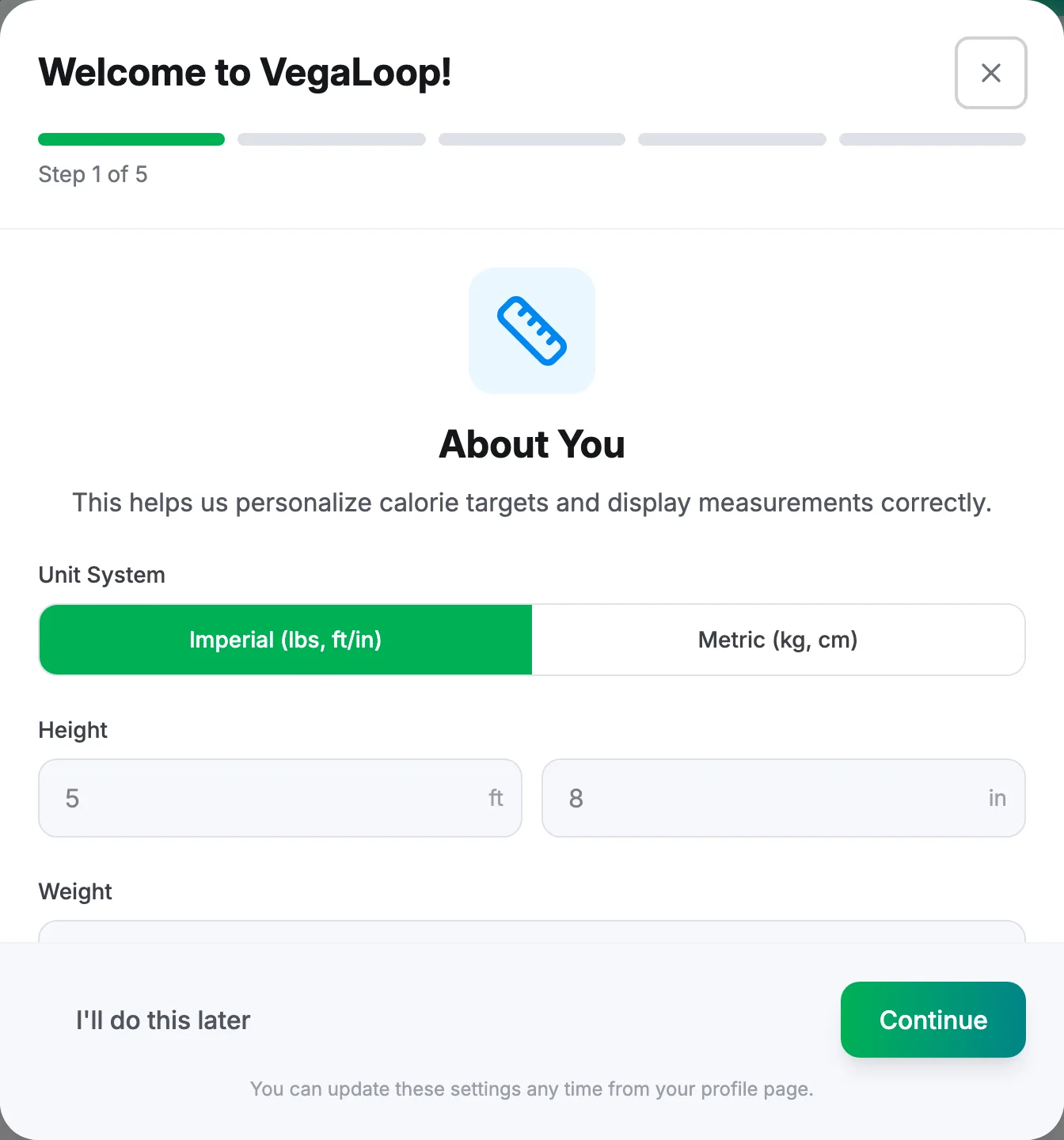
About You sets your unit system (Imperial or Metric), height, weight, date of birth, and gender. Height and weight drive the calorie target; age and gender go into the resting energy estimate and the default maximum heart rate. The date of birth must be a full date in the past that makes you at least 13 and no more than 120; the step says which rule a date breaks. Selecting Continue on this step also sets your timezone to your device’s; choosing I’ll do this later leaves the account on UTC, which files evening entries on the next day in most of the world. See Entries show on the wrong day.
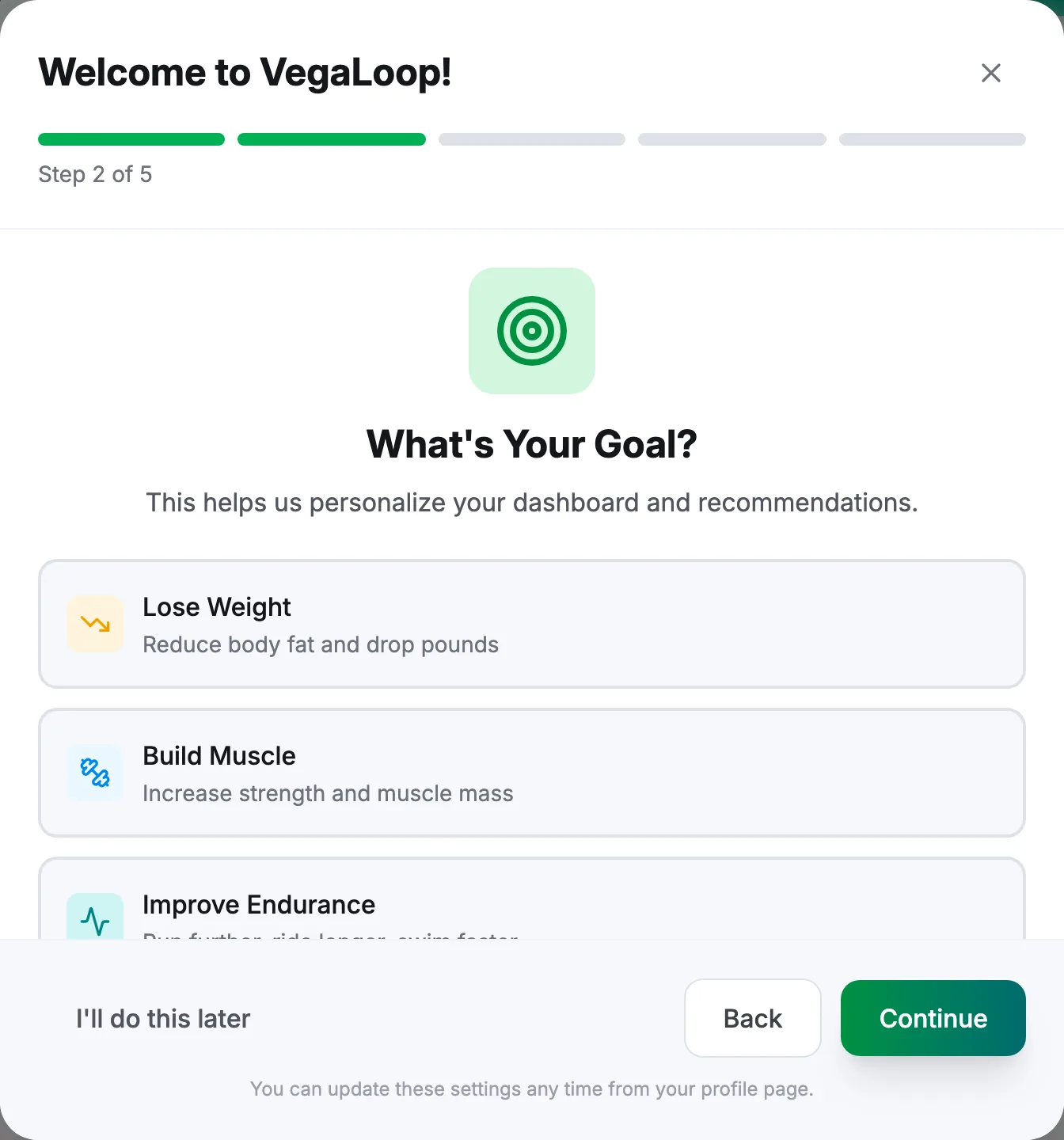
What’s Your Goal picks a direction: Lose Weight, Build Muscle, Improve Endurance, or Stay Active. It shapes the calorie target and which starting goals you are offered next.
Your Starting Goal appears only if you picked a direction. It offers up to three ready-made goals with a Start this goal button each. Starting one puts it on your dashboard and the Goals page; you can also skip this and browse the full Goals marketplace later.
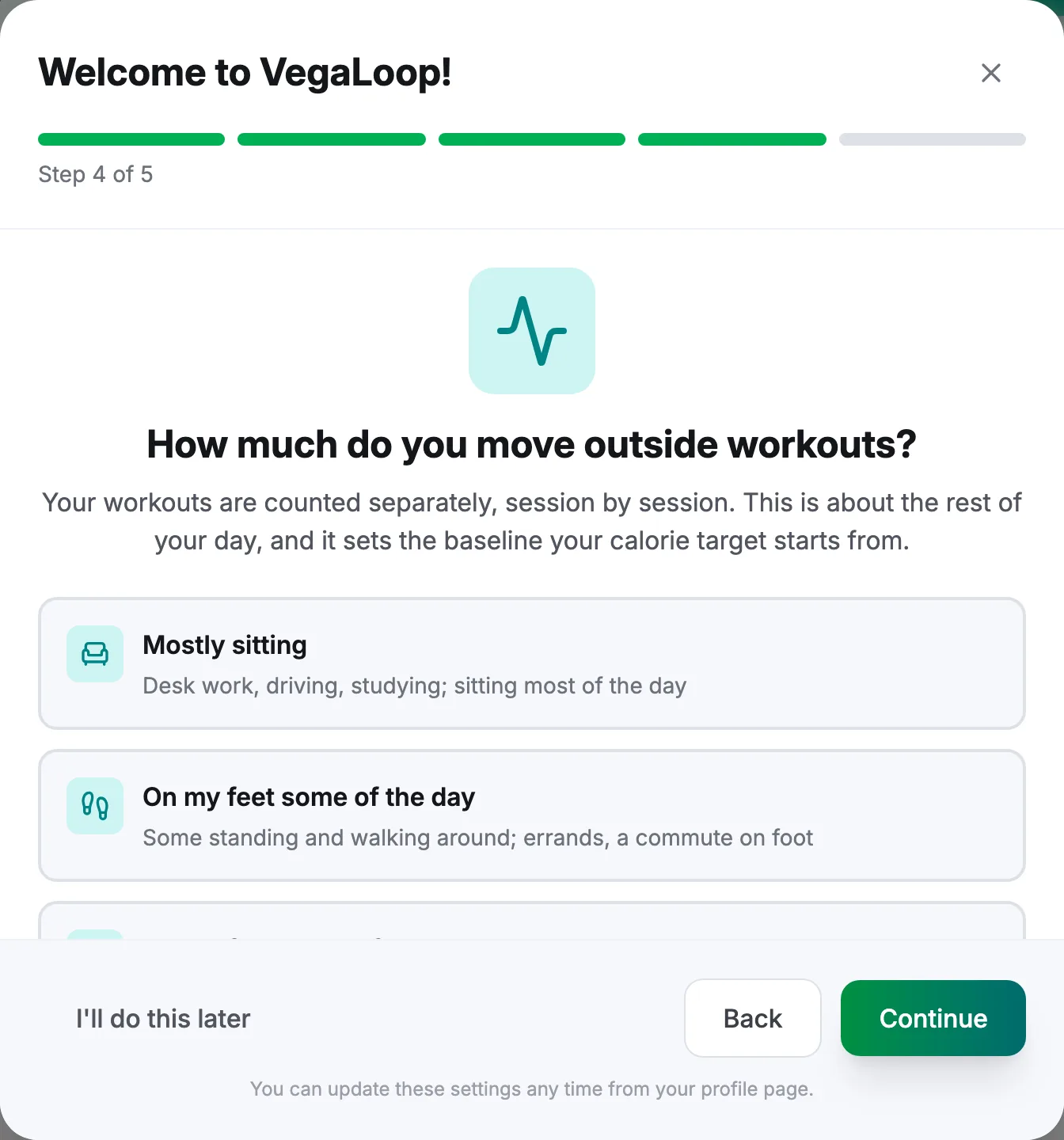
How much do you move outside workouts? (step 4; the step counter skips 3 if you picked no direction) asks about the rest of your day, with five options from Mostly sitting to Physical job. Training is counted separately as you log and sync it, so answer for the hours when you are not training. This answer has the largest effect on your calorie target; see Fuel targets explained.
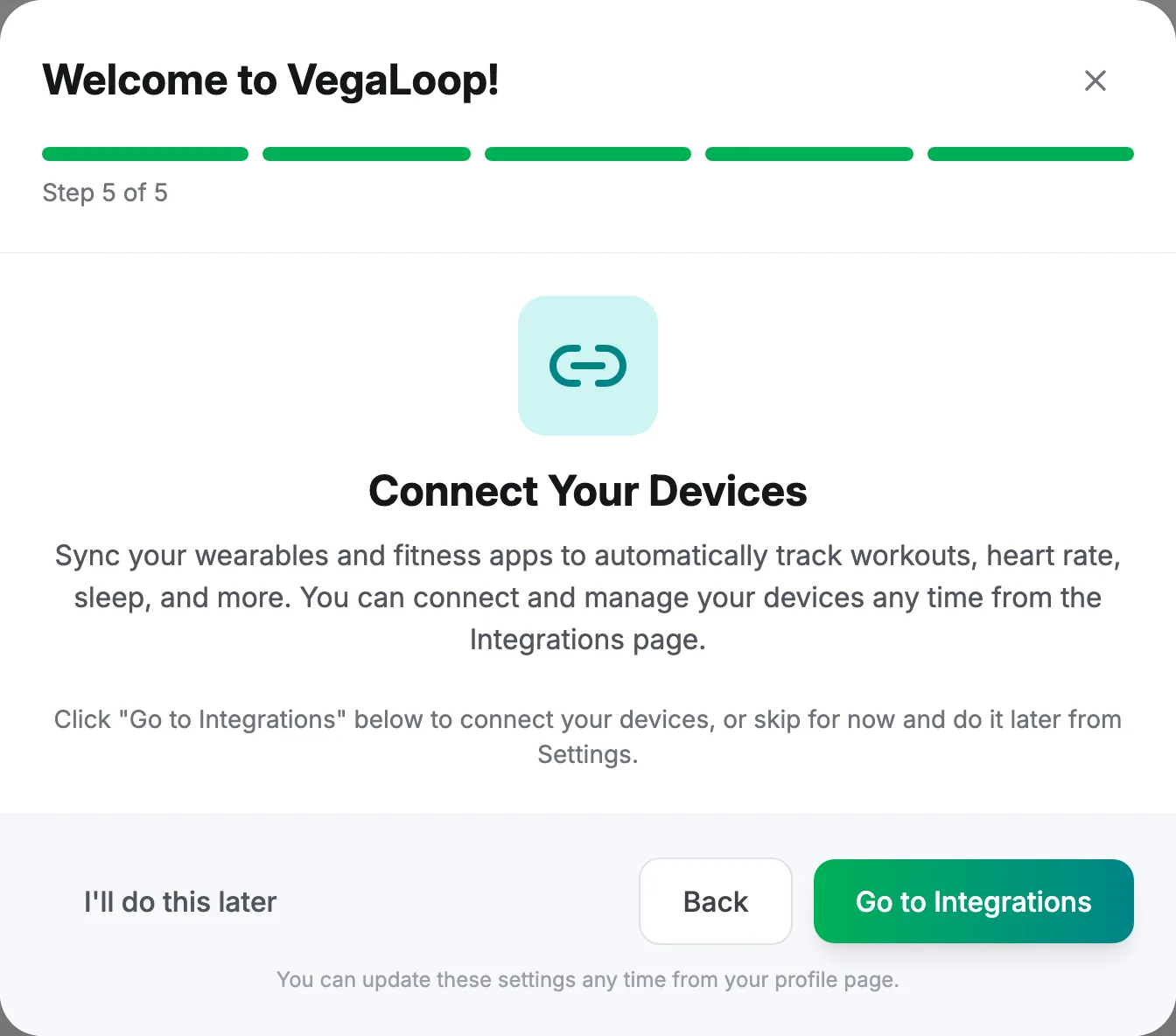
Connect Your Devices ends with Go to Integrations. You can do this any time; see Connect your devices.
Next
Take a tour of the app, or go straight to setting up your profile.